“Jupiter Global card not working” can describe several different states: the card is frozen, the account has not finished verification, the USD Spend balance is too low, the issuer limit was reached, the merchant category is restricted, a mobile wallet cannot add the card, or a previous authorisation is still holding funds. Start with the state visible in the official app instead of repeating the same payment.
The short answer
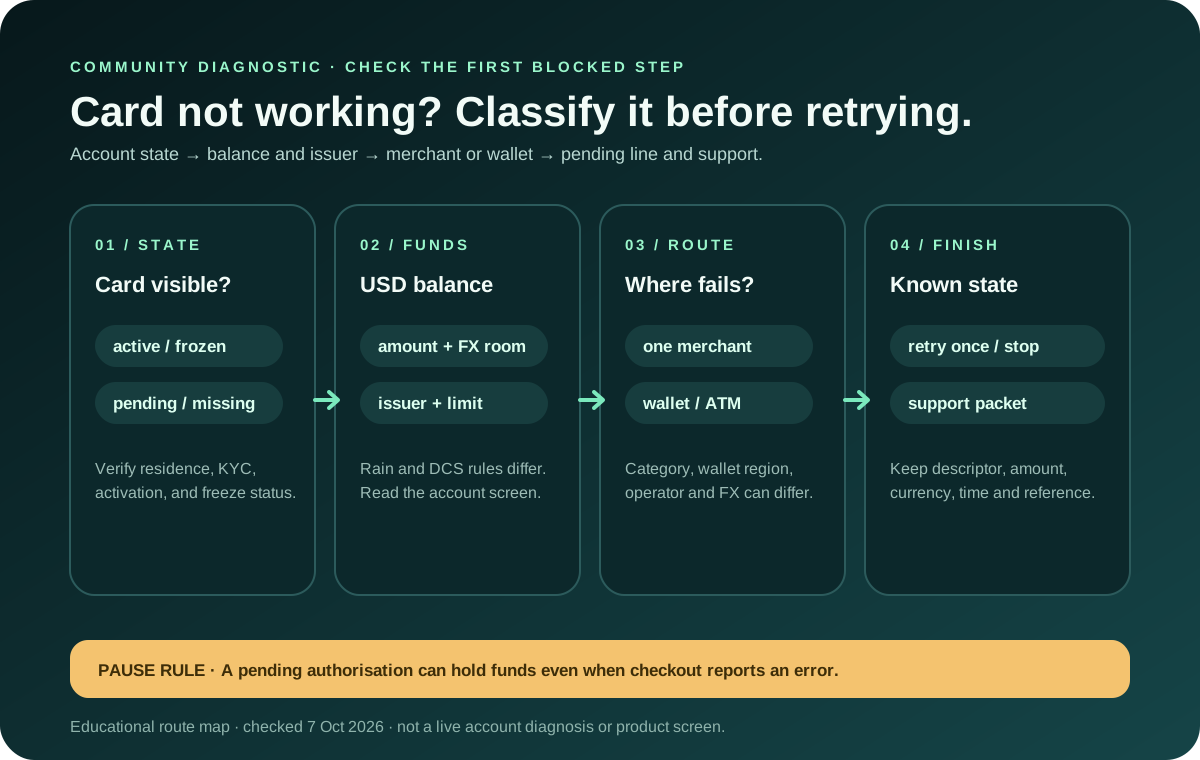
1. Open the official app and record whether the card is visible, active, frozen, pending, or missing. 2. Check the available USD Spend balance against the attempted amount and any non-USD conversion fee. 3. Confirm the issuer shown for the account and compare the applicable spending limit. 4. Identify whether the failure is at one merchant, every merchant, a mobile wallet, an ATM, or a previous pending transaction. 5. Keep the merchant descriptor, amount, currency, time, and transaction reference before trying again. 6. If the checks do not explain the failure, use official support with that private evidence packet.
Jupiter’s current FAQ lists insufficient balance, a frozen card, issuer spending limits, and restricted merchants as common decline reasons. A card problem is therefore a classification problem first. Read the current card FAQ
Find the first blocked step
| What you see | Most useful interpretation | Next check |
|---|---|---|
| The card is missing or still being issued | This may be verification, residence, issuer assignment, or phased card availability rather than a payment decline. | Check the Card screen and current verification status; do not create a second account. |
| The card is frozen | A frozen card blocks transactions until it is unfrozen in the app. | Leave it frozen if activity is suspicious, then use the official recovery and support route. |
| One merchant declines but another works | The merchant, category, descriptor, amount, or fraud control may be the difference. | Compare the exact descriptor and currency; use the merchant-decline guide and restricted-merchant guide. |
| Every ordinary merchant declines | Balance, card state, issuer controls, or an account-level issue is more likely than one merchant’s checkout. | Check the USD balance, issuer and card status before one controlled retry. |
| A payment line remains pending after an error | The merchant may have created an authorisation even if its checkout reported failure. | Do not retry repeatedly; classify the line with the verification-charge guide, then use the pending and refund guide. |
| The card works in the app but not Apple Pay or Google Pay | Wallet availability and verification are separate from card issuance. | Follow the mobile-wallet setup guide and check regional support. |
The current Card screen, transaction status, merchant response, and assigned issuer remain authoritative.
Check card state, residence, and issuer
Jupiter assigns Rain or DCS from the country of residence used during verification. The issuer is not chosen manually, and travelling to another country does not change it. A listed residence can let you inspect the official route, but it does not guarantee approval, activation, wallet support, or every Spend feature. Review the Card country and issuer rules
If the card is frozen, unfreeze it only after checking the reason for the freeze. If the card is missing, record what the app actually shows: verification pending, card unavailable, activation pending, or an order option that has not appeared. Physical cards are rolling out in phases; a missing physical option is not proof that the virtual card route is broken.
The issuer changes the limits that matter. The current documentation lists a DCS daily limit of $50,000 and annual limit of $990,000, while Rain has no published spending limit on that table. A limit is still not a guarantee that a payment will clear: the available balance, merchant controls, currency, and account state are separate checks. Read the current fees and limits · Use the card-spending-limits guide for a large-payment preflight.
Check the USD balance and currency
The card draws from a USD Spend balance. The app displays the Spend balance in USD; deposited USDC and USDT are not automatically converted to USD on arrival. With Rain, the stablecoins remain on-chain as card collateral. A non-USD purchase also needs room for the issuer’s FX conversion fee: the current table lists 1% for Rain and 1.8% for DCS.
Compare the attempted amount rather than the subscription or product price you remember. Tax, a changed renewal, a tip, a verification charge, or a merchant currency conversion can make the amount larger. Do not top up blindly while a pending authorisation is already reducing available balance.
Separate merchant, wallet, and ATM routes
A Visa acceptance mark does not make every category eligible. Jupiter documents restricted merchant categories for compliance and risk reasons, and some merchants can be restricted dynamically by fraud monitoring. A financial service, money-transfer product, gambling service, government payment, or another restricted category can fail even when ordinary retail spending works.
Wallet and ATM issues follow different paths. Apple Pay or Google Pay must support the region and complete its own verification. ATM acceptance depends on the physical card, the operator, and the region; an ATM decline does not prove that an ordinary card payment is unavailable. Check the card wallet route · Review ATM and PIN checks
Treat pending, reversed, and duplicate lines separately
A merchant can report a failed checkout while leaving a pending authorisation in the app. Jupiter says an uncaptured authorisation can take up to 30 days to drop, depending on the merchant. A settled refund is a different state and can take up to 7 business days; it appears as a separate credit marked “Reversed” under the original transaction. Use the duplicate-charge checklist when two lines appear, and keep both references private.
Do not retry from several devices, create another Global ID, or accept a direct-message “support” account that asks for a recovery phrase, password, one-time code, or full card details. Jupiter’s FAQ calls this account a Global ID, previously called Jupiter ID. Its security guidance recommends freezing suspicious cards and using the official support path. Read the security guidance · Open official support
Build a useful support packet
If the card is active, the balance is sufficient, the issuer and currency are understood, and one controlled retry still fails, prepare:
- the exact merchant descriptor;
- attempted amount and currency;
- date, time zone, and transaction reference;
- the visible status or error message;
- whether the card is virtual or physical and which issuer the app shows;
- whether the merchant says it captured, voided, or retried the payment.
Send that packet through the official in-app support route. A support acknowledgement proves that a case was opened; it does not prove approval, a refund, or a successful payment.
Keep going until one of these is true: the card is active and the merchant accepts it, the wallet route is verified, the pending hold is released, or an official support case contains the original reference. Use the route finder and safety practice tool to rehearse the checks. If you’re new to Jupiter, sign up for Jupiter Global and check your residence, assigned issuer and the confirmation screen before funding or spending. You’ll earn 2% cashback on eligible Jupiter Card purchases, up to $100 a month.
Jupiter Global card not working FAQ
Why was my Jupiter Global card payment declined?
The current FAQ lists insufficient USD balance, a frozen card, issuer spending limits, and restricted merchants among common decline reasons. Check the visible card state, available balance, issuer, merchant category and currency before one controlled retry.
What if my card is missing from the app?
A missing card can reflect verification, residence, issuer assignment, activation or phased physical-card availability rather than a merchant decline. Record the exact Card-screen state and use the official app and support route; do not create a second Global ID.
Why does the card work at a merchant but not in Apple Pay or Google Pay?
Wallet availability has its own regional and verification requirements. A working Visa Card does not prove that a mobile wallet can add it, and a wallet failure does not prove the card itself is unusable.
What should I do when a declined payment is still pending?
Do not repeat the payment immediately. A merchant checkout error can leave an authorisation hold that takes up to 30 days to drop, depending on the merchant. Keep the reference and check whether the line settles, reverses or remains pending.
What evidence should I send to support?
Send the merchant descriptor, amount and currency, date and time zone, transaction reference, error or status, card type, and assigned issuer. Redact sensitive details and never send a password, one-time code, recovery phrase or complete card number.
Sources
Checked against these sources on 21 October 2026.