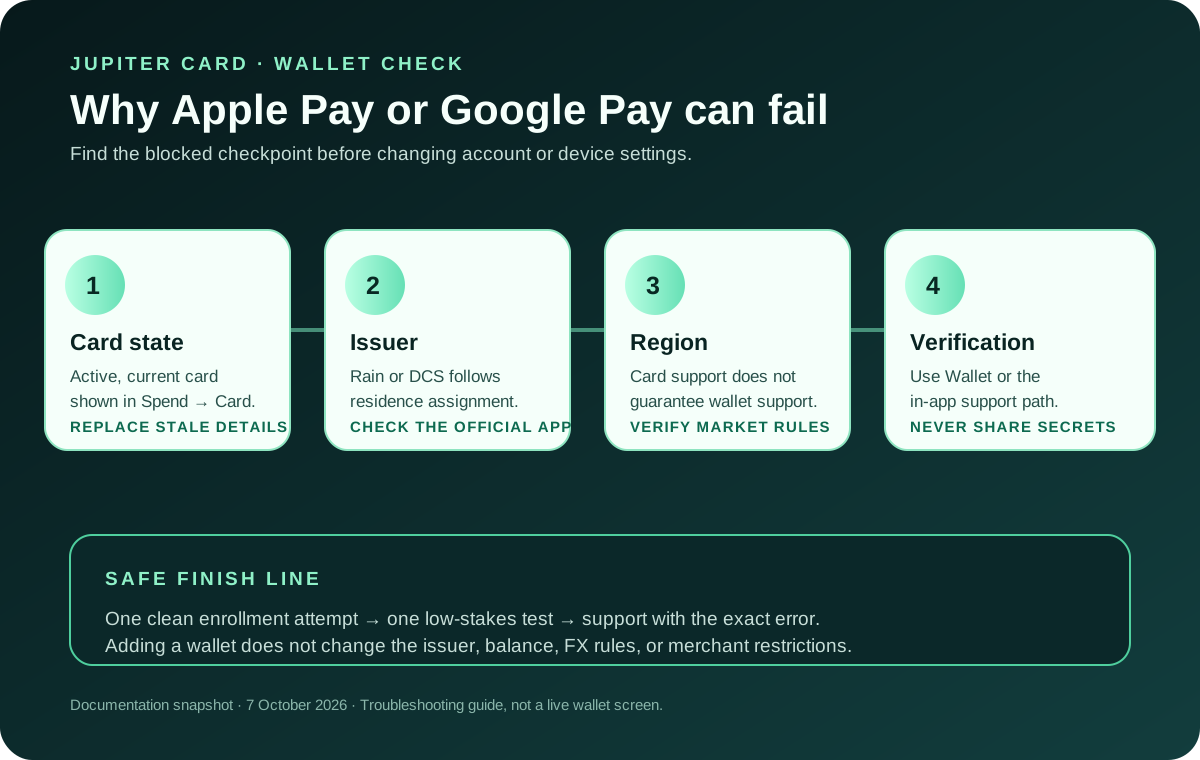
If a Jupiter Card will not add to Apple Pay or Google Pay, the failure usually belongs to one of four checkpoints: the card, the issuer, the wallet service in that region, or the verification step. Repeating the same add-card action does not tell you which checkpoint failed. The Jupiter Global guides directory keeps wallet, activation, residence, and card-decline routes together while you isolate the blocked checkpoint.
Start with the card state
Open the official Jupiter app and go to Spend → Card. The card should be visible, active, and available for its details to be shown. A frozen, cancelled, expired, or not-yet-issued card cannot become usable by adding it to a phone wallet. Jupiter Card management
Check that you are adding the current card. If the app has issued a replacement, an old card number saved in Wallet can fail even though the account itself is fine. Remove only the obsolete entry after you have recorded the exact message and confirmed which card is active.
Separate card availability from wallet availability
Jupiter documents Apple Pay and Google Pay as region-dependent. Your country can support the Jupiter Card while the wallet service, issuer verification, or local platform rules do not support that card there. A successful KYC result therefore does not guarantee a successful Wallet enrollment. Spend FAQ
Check these boundaries before changing settings:
- Country or region on the phone and the wallet account.
- The issuer assigned to the card by residence, Rain or DCS.
- Whether the phone’s wallet service is available in that market.
- Whether the operating system and device can use the wallet.
Do not treat a regional limitation as a bad card number. Switching the phone’s region to bypass a payment rule can create a separate account or service problem and does not prove that a purchase will work.
Use the documented enrollment flow once
For Apple Pay, open Apple Wallet, choose Add Card, select debit or credit card, enter the details currently shown in Jupiter, and complete the verification requested in Wallet. For Google Pay, open Google Wallet, choose Add to Wallet, select payment method, enter the current card details, accept the issuer terms, and complete the SMS or email verification. Card enrollment steps
Use the wallet application itself for the verification prompt. Never give a one-time code, full card security code, password, or recovery phrase to someone who claims to be fixing Wallet through social media or a private chat. Jupiter’s security guidance treats partner and impersonation risk as part of the product decision, not as a reason to weaken the check. Spend risks For the Android-specific branch, compare the same checkpoints with the Google Pay guide.
Read the exact error before trying again
The error wording determines the next useful action:
| What you see | Likely checkpoint | Useful next move |
|---|---|---|
| “Card not supported” or a country message | Wallet or issuer availability | Confirm the phone and wallet region; check the current official card page |
| “Could not verify” | Issuer verification or contact detail | Confirm the phone/email on the Jupiter account, then use in-app support |
| “Invalid card” | Stale details or wrong card | Re-open the active card in Jupiter and enter those details once |
| Card adds but payment fails | Merchant, balance, currency, or card state | Make a small ordinary test purchase and check the Spend transaction state |
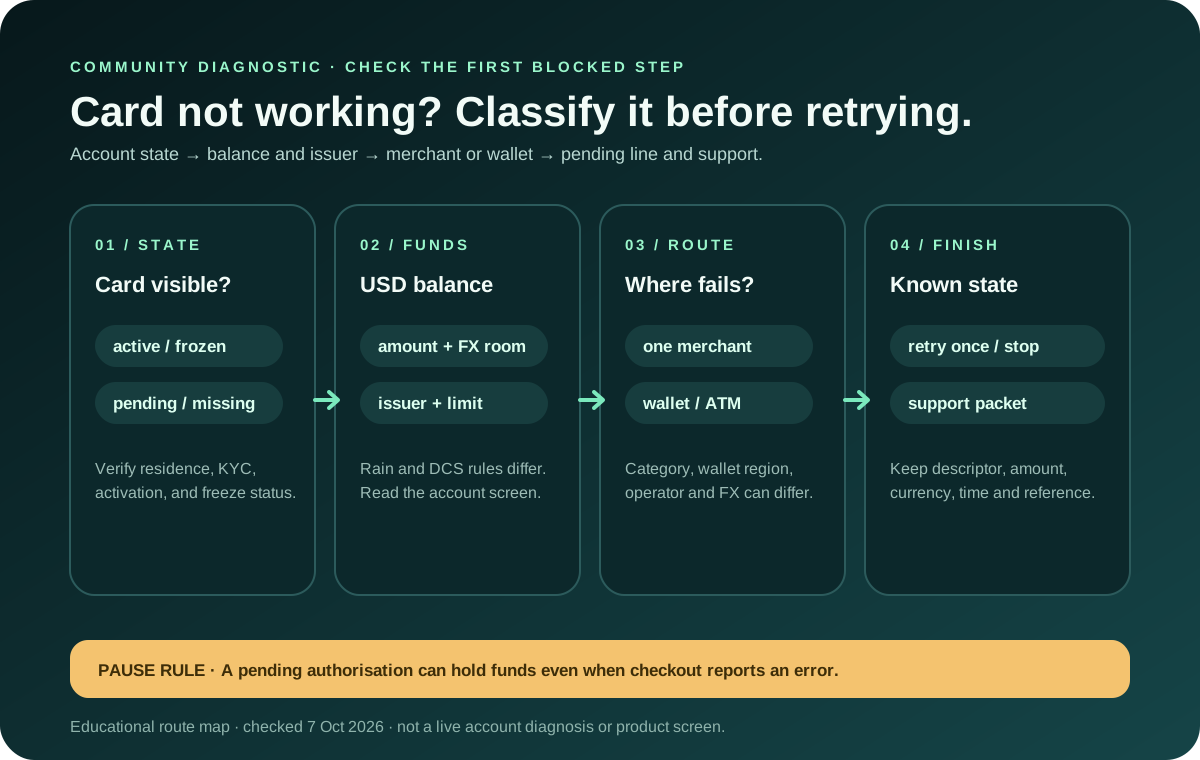
Save a screenshot for your own record, but do not publish or send card numbers, security codes, identity documents, or one-time codes. If the wallet is asking for a step that is not visible in the official app or wallet flow, stop and use official Jupiter support. If the same card also fails outside the wallet, continue with the card-not-working diagnostic instead of repeating enrollment.
A successful add does not remove payment limits
Adding the card to a wallet does not change the USD balance, assigned issuer, foreign-exchange fee, merchant-category restrictions, or the countries where the card is available. Jupiter says the wallet can be another way to present the card; it is not a new funding rail. Non-USD payments can still carry the issuer’s documented FX fee, and a restricted merchant can still decline a tokenized card. Card and limits guidance · Spend FAQ
After enrollment, make one low-stakes purchase while keeping a backup method. Avoid using the first test for a hotel deposit, rental-car hold, large subscription renewal, or a trip where a decline would leave you without another payment method. Compare the wallet result with the transaction shown in the Jupiter app before assuming the test settled.
When to contact support
Use in-app support when the card is active, the wallet service is available in your region, the verification details are current, and the same error persists after one clean attempt. Include the exact error, device and operating-system version, wallet name, issuer if shown, and the approximate time. Include only the minimum transaction context support needs; never include a secret or recovery phrase. Official support
Still setting up? Read the app-download guide and use the eligibility checker. Don't have the card yet? Sign up for Jupiter Global, add the card to Apple Pay once it's active, and earn 2% cashback on eligible Jupiter Card purchases, up to $100 a month. Confirm the live wallet and card screens before relying on the phone for a purchase.
Use the eligibility checker to separate residence and card availability from wallet-service errors. If the card itself is still pending, read the card-activation diagnostic; for a broader enrollment walkthrough, use the mobile-wallet setup guide.
Use the Route Finder if your actual goal is broader than wallet setup. It can separate ordinary card spending, QR Pay, a bank payout, and crypto funding; it cannot make Apple, Google, Jupiter, or an issuer approve a card.
Retrying rarely tells you anything new. Work out whether the block is the card, the issuer, the region, or the verification step, then choose the next action that matches that state.
Jupiter Global Apple Pay not working FAQ
Why will my Jupiter Global card not add to Apple Pay?
The block can come from the card state, issuer verification, wallet availability in the phone’s region, device support, or stale card details. Confirm the active card in Spend → Card and record the exact Wallet message before making one clean retry.
Does card eligibility guarantee Apple Pay support?
No. Jupiter documents wallet availability separately from card availability. A supported residence and successful identity review do not prove that Apple Pay or Google Pay supports the assigned issuer in your region.
What should I do when Apple Wallet says it cannot verify the card?
Use the verification prompt inside Apple Wallet, confirm that the account contact method is current, and use official in-app support if the same message remains. Never give a one-time code, full security code, password or recovery phrase to a private helper.
The card added to Apple Pay but the payment failed. What now?
Treat wallet enrollment and payment approval as separate checkpoints. Check the USD balance, issuer limits, currency, merchant category and card state, then use a modest ordinary purchase with a backup payment method.
What should I send official support?
Send the exact error, device and operating-system version, wallet name, issuer if shown and approximate time, plus only the minimum transaction context requested. Redact card numbers, security codes, one-time codes, passwords and recovery information.
Sources
Checked against these sources on 7 October 2026.