QR Pay has two funding routes. Wallet-funded QR uses USDC on Solana in Jupiter Mobile after Global ID sign-in and the required identity check; no Jupiter Card is needed. Spend-balance QR requires an eligible DCS-issued card. Wallet QR limits come from the merchant code, while Spend QR has the documented $500 transaction and $5,000 daily limits. Wallet payments show the exchange rate and network cost before confirmation. Current QR routes
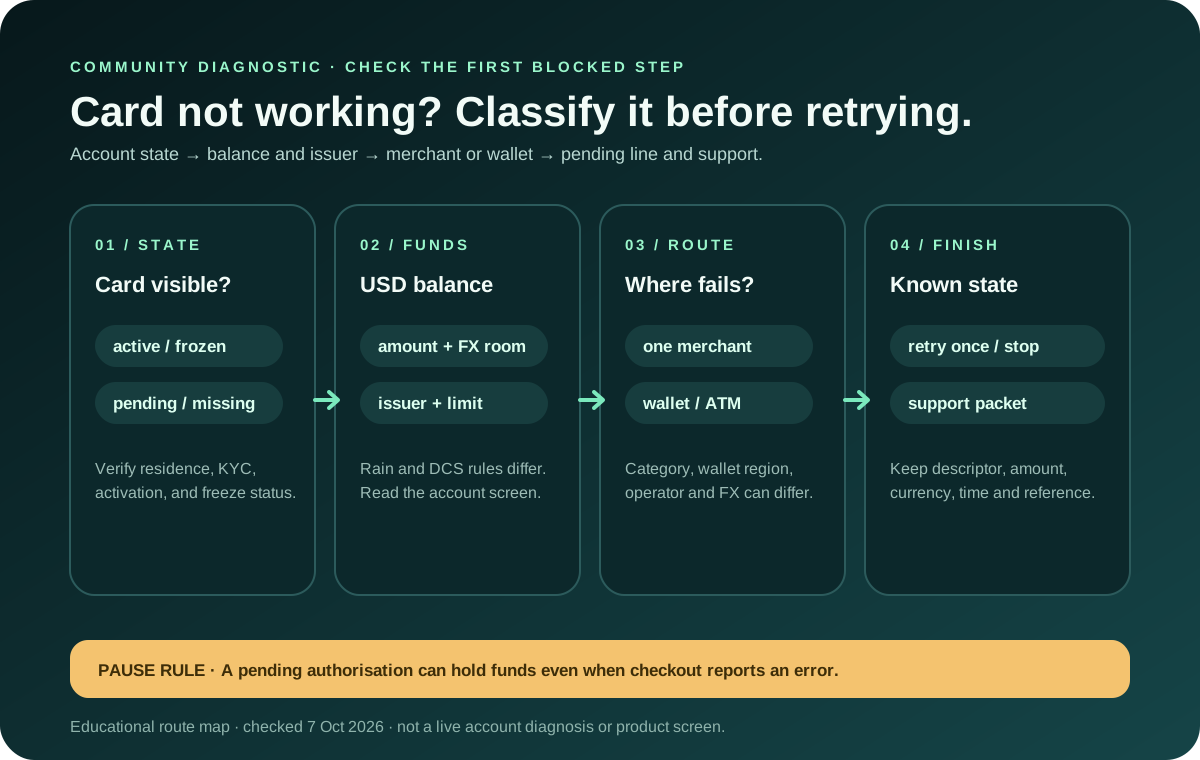
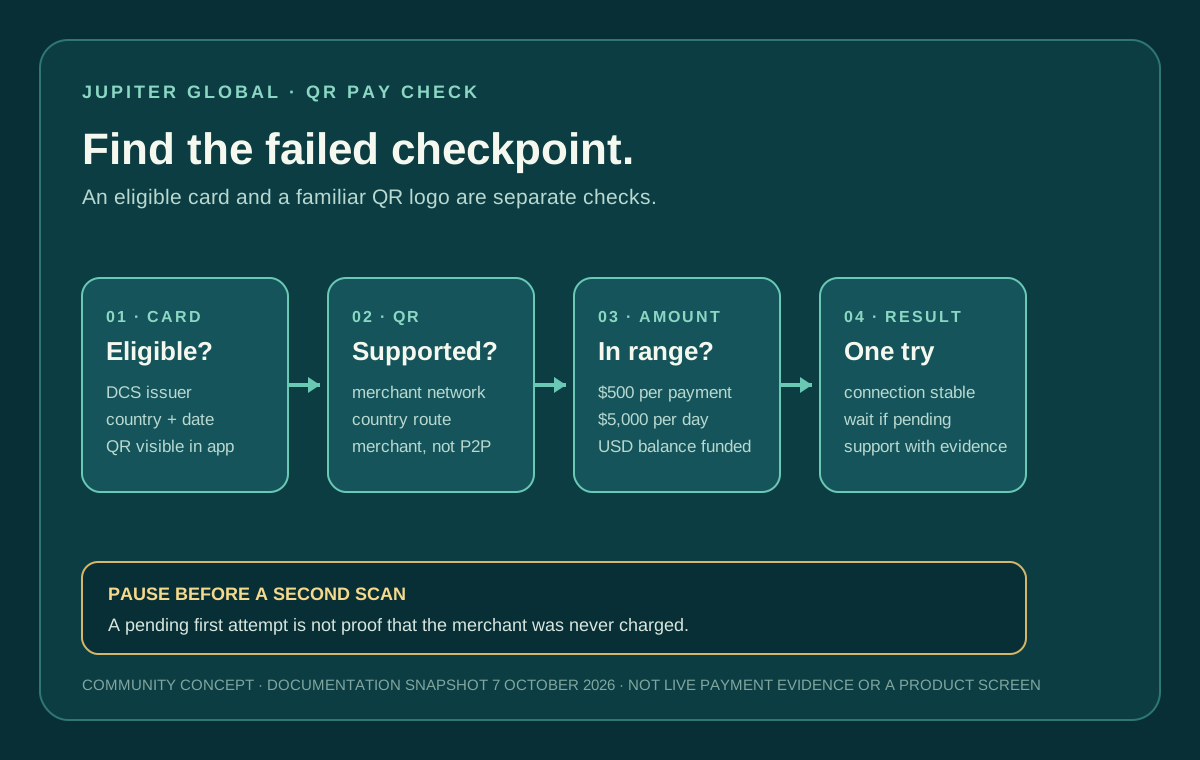
When Jupiter Global QR Pay fails, the QR image is not always the problem. A payment can stop at card eligibility, country support, merchant format, balance, limits, connectivity, or an unresolved first attempt. Check those gates in order so you do not scan repeatedly or mistake a merchant payment issue for an account problem.
If you are researching the route rather than recovering a failed scan, use the residence and feature checker and Route Finder first. They can organize the Card, QR, bank or funding question; they cannot inspect the QR code, card issuer or account state.
First identify where the failure happens
Open the official Jupiter app and start from the Spend home screen. The QR Pay flow opens from the scan button in the top-right corner. If the scan control is missing or the app says the feature is unavailable before you scan anything, stop at the account and card checkpoint. Do not keep changing merchant QR codes to solve an eligibility message. How QR Pay works
If the scanner opens but rejects the code, the failure has moved to the merchant, country, or network checkpoint. If the code is accepted but the payment does not complete, check the amount, balance, connection, and status before authorizing again.
Check the card and country gate
Jupiter’s current documentation says Spend-balance QR Pay is available on eligible DCS-issued cards only; Rain-issued cards do not support it yet. Some markets also restrict cards activated after a stated cutoff. The current table lists Vietnam, the Philippines, South Korea and Taiwan as supporting all cards, Malaysia for cards activated before May 13, 2026, Thailand before May 28, 2026, and Singapore before mid-May 2026. The table does not establish QR card support for every other card-issuance market, so do not infer eligibility for Indonesia, Cambodia or Mongolia from the merchant network list alone. Current card eligibility
Your location at the moment of payment does not replace the card’s issuing and activation conditions. A DCS card issued in one country may be eligible where the feature is available, while a Rain card can remain ineligible even when the merchant’s QR network is familiar. The card activation guide explains how to separate a missing card state from a QR-specific restriction.
Match the merchant QR network
The QR code must belong to a currently supported merchant network. Jupiter lists KHQR for Cambodia, QRIS for Indonesia, DuitNow for Malaysia, QPay for Mongolia, QR Ph for the Philippines, and VietQR for Vietnam. Laos is not in the current network list. Singapore’s SG QR and Thailand’s PromptPay are marked temporarily unavailable in the current documentation. Supported QR networks
A square code on a counter is not enough evidence. Ask which network it uses and whether it is a merchant code rather than a personal transfer request. QR Pay is primarily a merchant-payment feature; person-to-person support exists only in selected regions. A code that opens another bank or wallet app may be valid for that service and still be outside Jupiter’s route.
Check amount, balance, and the day’s total
The Spend-balance QR limits are $500 per transaction and $5,000 per day; wallet-funded QR uses the limits shown for each merchant code. A payment below the limit can still fail, but an amount over either ceiling cannot be repaired by scanning again. Current fees and limits
QR Pay draws from the USD balance in Spend and settles the merchant in local currency. The documentation lists no payer or recipient fee, including the conversion, but your balance still has to cover the payment. Funding costs paid before money reached Spend are a separate question. Check the available balance, the local-currency amount, and the day’s QR total before authorizing. QR Pay settlement
For a larger decision, the site’s quote comparison tool can compare a bank route with a user-entered amount. It cannot test a QR code or retrieve a live card state, so keep its result separate from product eligibility.
Treat connectivity and pending status differently
The FAQ names insufficient balance, unsupported merchant QR format, and connectivity problems as common QR failure causes. First restore a reliable connection and reopen the official app. Then scan once and wait for the result. QR failure guidance
If the merchant says the attempt failed but the app shows a pending authorization, do not immediately pay a second time. Save the time, amount, currency, merchant name, and visible status privately. A second scan is a new payment attempt; it does not prove that the first one was cancelled. Wait for the first status to resolve or contact official support with the original details.
If the app reports a completed payment but the merchant cannot see it, keep the receipt or reference and ask the merchant to check the correct network. Do not send a screenshot containing full card details, one-time codes, or identity documents to a person offering an “unlock.” Official support
Use a support-ready checklist
Before opening in-app support, record:
1. Your country of residence and card issuer, if shown in the app. 2. Whether the QR scanner was visible and the merchant network named on the code. 3. The merchant name, country, amount, currency, and exact time. 4. Whether the payment was rejected before authorization, stayed pending, or showed completed. 5. The available USD balance and the day’s approximate QR total. 6. The device, app version, and whether the connection changed during the scan.
Never include a seed phrase, private key, full card security code, or login code. Jupiter’s FAQ asks for original transaction details for card issues; the same principle makes a QR case traceable without exposing secrets. Spend support
For the Philippines or Vietnam, use the QR Ph versus VietQR guide. For the numeric ceiling, use the QR Pay limits guide. If the card itself is the blocker, use the first-payment checklist and keep a backup payment method.
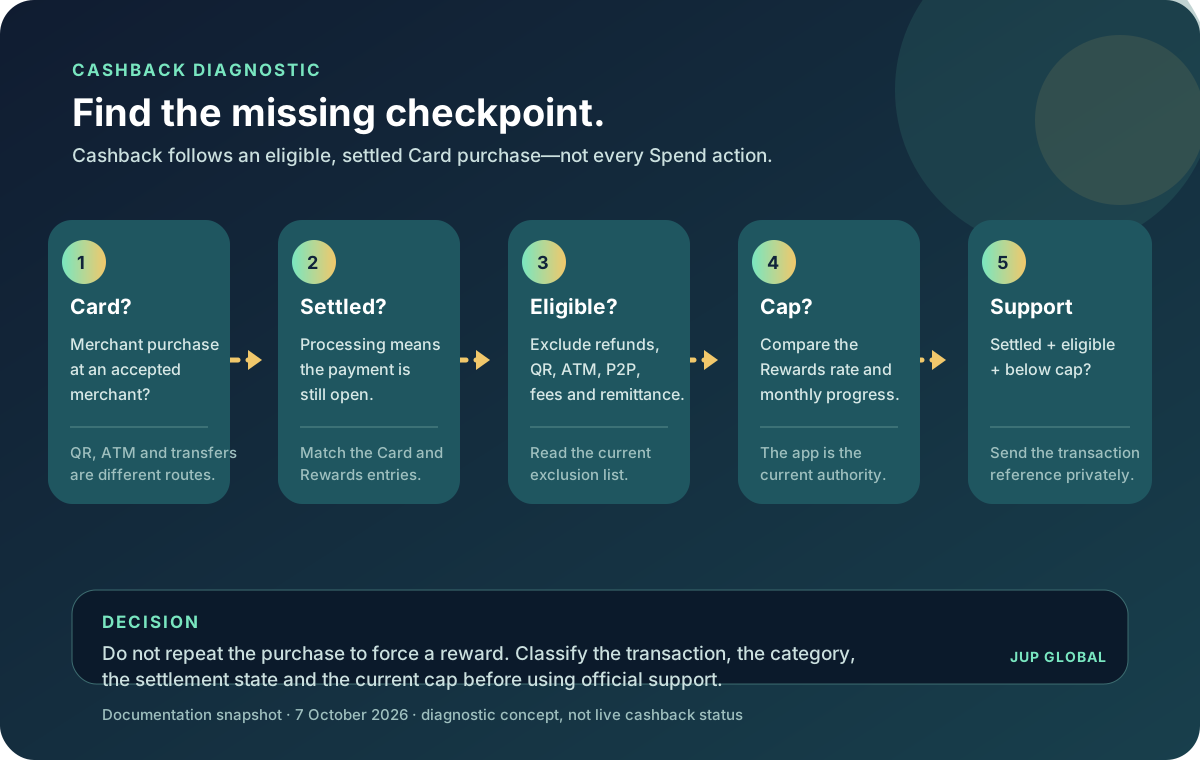
A QR payment settles when it has a supported card and network, a valid merchant code, a funded balance and an amount within the limits. New to Jupiter? Sign up for Jupiter Global and confirm the live card issuer, QR availability, merchant network and Spend balance before scanning. QR Pay itself doesn’t earn cashback, but eligible Jupiter Card purchases earn 2% cashback, up to $100 a month.
Jupiter Global QR Pay Not Working FAQ
Why is Jupiter QR Pay unavailable even when the merchant has a QR code?
The merchant code must use a supported network, and the card must meet the issuer, country and activation conditions. A QR image by itself does not prove that Jupiter supports that network or card.
Does every Jupiter Card support QR Pay?
No. The current documentation says Spend-balance QR Pay is available on eligible DCS-issued cards only, with market-specific activation rules; Rain-issued cards do not support it yet. Confirm the issuer and live feature state in the official app.
What are the Jupiter QR Pay limits?
The Spend-balance QR payment limits are $500 per transaction and $5,000 per day; wallet-funded QR uses each merchant code’s limits. A payment within those limits can still fail because of balance, network, merchant format, connectivity or account state.
What should I do if QR Pay is pending?
Do not scan again immediately or pay a second time. Save the merchant, amount, currency, time and visible status, then wait for the first authorization to resolve or contact verified support with the original details.
Can I use a personal QR code for Jupiter QR Pay?
Treat a personal transfer request separately from a supported merchant QR network. Confirm the network and recipient in the official app, and stop if the code is not shown as a supported merchant route.
Sources
Checked against these sources on 21 October 2026.