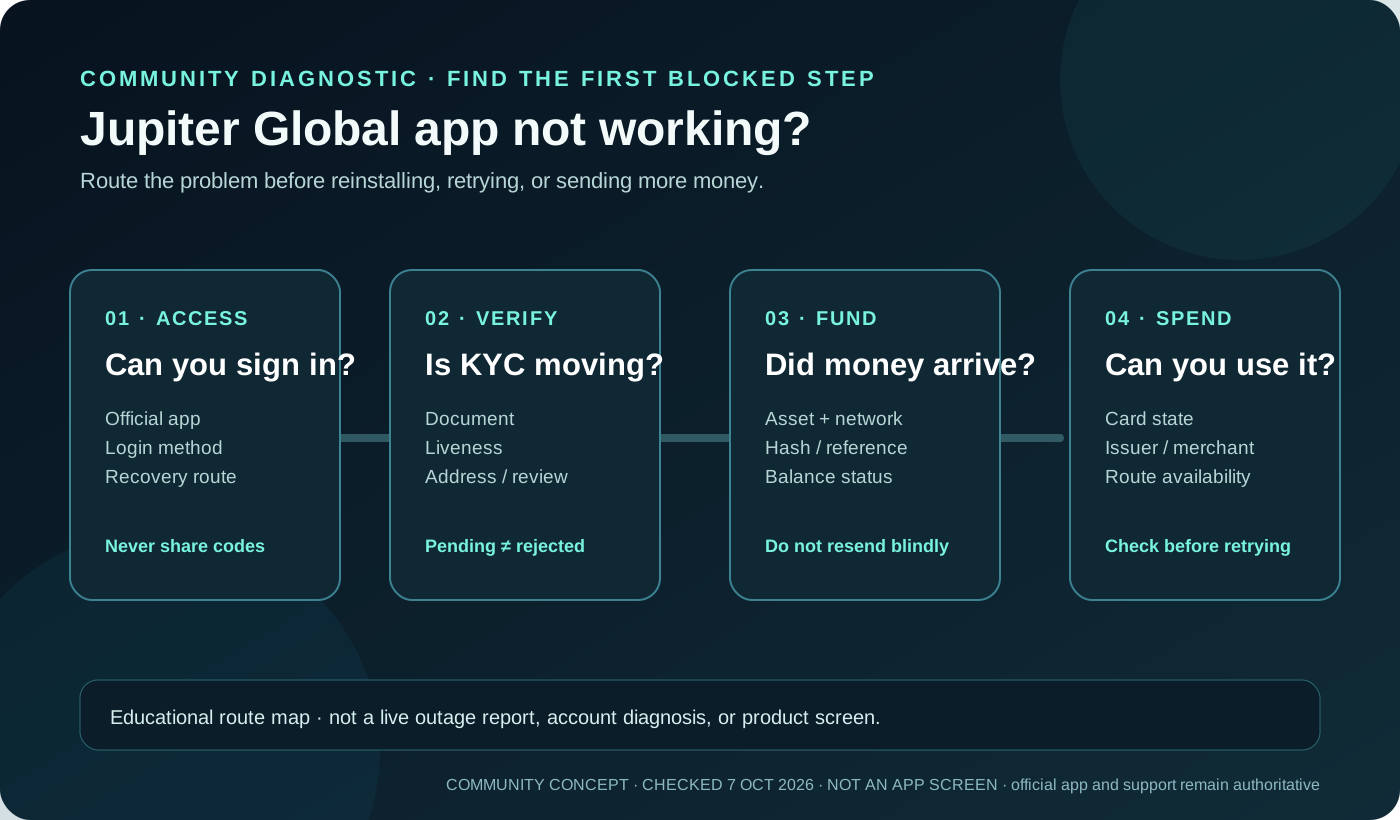
“Jupiter Global app not working” can describe several different failures: the sign-in screen rejects a credential, identity verification is waiting, a card action is unavailable, a deposit has not appeared, or a transfer is still processing. Start with the first screen that stopped you. Reinstalling the app or repeating a payment before identifying that state can make the evidence harder to follow.
The short answer
1. Note the exact screen, message, time, device, and network before changing anything. 2. Decide whether the block is access, verification, funding, or spending. 3. Use the official app and support route for that state; do not trust a direct-message fixer or an unofficial download. 4. Do not create a second Global ID, resend a deposit, or repeat a card payment while the first state is unresolved. 5. Keep transaction references, hashes, and screenshots privately, with passwords, codes, and wallet secrets removed.
Jupiter’s current FAQ calls this account Global ID, previously Jupiter ID. It is the sign-in and identity layer for Spend; only one Global ID can be logged in at a time, and support should handle lost access to the registered email or phone. Read the current account and verification FAQ
Find the first blocked checkpoint
| First blocked step | What to check now | Correct next route |
|---|---|---|
| The app will not open or sign in | Official app source, network, login method, and exact error | Use the account-recovery or official support path |
| Sign-in works but verification is waiting or rejected | Document quality, phone, liveness, address evidence, and review status | Use the KYC checklist; do not submit altered documents |
| Spend opens but a deposit is missing | Asset, network, transaction hash, confirmations, and the 30-minute support checkpoint | Use the deposit-pending guide and support |
| The card or wallet action is unavailable | Card state, country, issuer, balance, and Apple/Google regional availability | Use the card, wallet, or card-not-working guide |
| A bank transfer is delayed or failed | Recipient data, currency, rail, reference, and app status | Use the transfer-delay or support-packet guide |
Feature availability can depend on residence, issuer, partner, regulation, and the account’s current state.
Are you troubleshooting or setting up?
Find the row that matches what you’re trying to do before taking another action:
| Your situation | Start with | The app error does not prove |
|---|---|---|
| You already have an account and cannot sign in | Global ID recovery guide | That a second account or a new device will fix the original identity state |
| You are new and need the official install route | Jupiter Global app-download guide | That a community link can replace the official store, residence or verification checks |
| You want to use a Card after setup | Card signup-requirements guide | That a working app guarantees Card approval, issuer assignment or wallet access |
| You need to fund Spend | Deposit safety guide | That a confirmed blockchain transaction proves Spend credited the balance |
If you are deciding whether the next step is a card test, a deposit, or a bank route, use the site’s Route Finder before funding.
If the app will not open or sign in
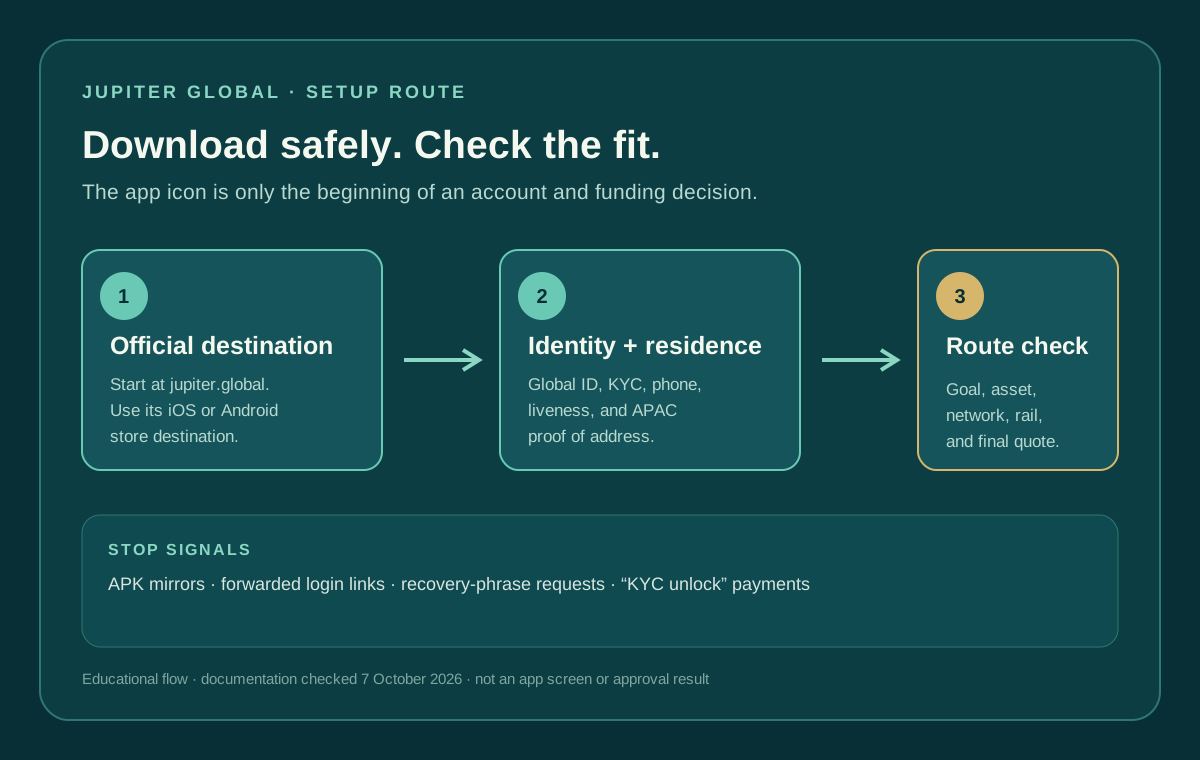
First confirm that you reached Jupiter through the official website or the app-store listing it provides. Do not install an APK, modified client, desktop package, or browser extension sent by a stranger. If a message claims that support can unlock the account, go to the official app or support hub yourself. Review the official download route
If the app opens but login fails, identify whether Global ID uses your email code, Google or Apple sign-in. There is no Global ID password to reset. Recover Google or Apple access through that provider when it is the login method. The current FAQ says permanently losing access to the registered sign-in method requires support; it does not authorize a community guide to replace either one. Use the account-recovery checklist
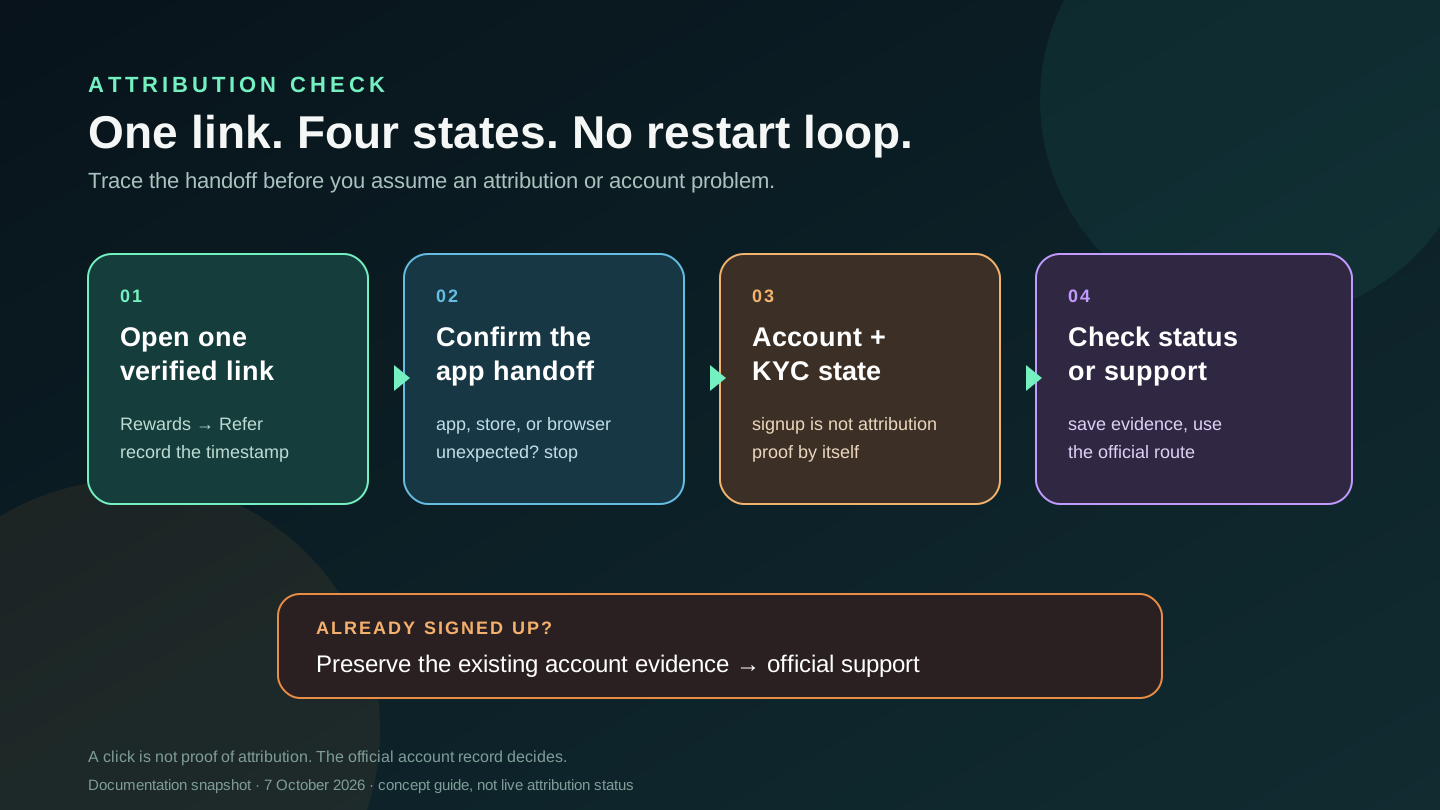
Record whether the failure occurs before or after the verification screen. A login problem and a rejected KYC submission need different evidence. Do not create another Global ID to bypass the error, and do not share a one-time code, password, recovery phrase, or private key with anyone claiming to be support. Read the security boundary
If verification is the blocked step
The documented verification flow includes an identity document, phone verification, liveness, personal information, and a short questionnaire. APAC users may also need proof of address. A manual review can take longer than the usual few minutes; a pending screen is not the same as a rejection or approval. Check the verification checklist
Use your real country of residence and current documents. A screenshot of a country list cannot guarantee feature access for an individual account. If a document is rejected, follow the official resubmission message and keep the original case details. Do not pay an intermediary to “pass” KYC, and do not edit an address document to fit a route.
If funding is the blocked step
For a crypto deposit, reopen Spend → Deposit immediately before sending. Jupiter’s FAQ currently lists USDC on Solana, Ethereum, Sui, Arbitrum, and Base, and USDT on Solana for the direct deposit address. It warns that an unsupported asset or network can be permanently lost. Save the transaction hash, destination address, asset, network, amount, and timestamp. Run the deposit preflight
Most deposits arrive after the required confirmations, but a confirmed transaction that is still missing from the balance after the documented support checkpoint needs a support request. Do not resend the same funds just because the balance view is slow.
For a bank transfer, compare the currency, beneficiary, rail, reference, and transfer status shown in the app. A bank transfer is not a wallet deposit, and a virtual account is not a blockchain address. If the transfer failed, delayed, or reached the bank but not the beneficiary, use the matching route guide rather than starting a duplicate transfer. Open the transfer support packet
If spending is the blocked step
A card action can fail even when the app itself is operating. Check whether the card is frozen, whether the USD Spend balance covers the purchase and any non-USD FX fee, whether an issuer limit applies, and whether the merchant category is restricted. The Card documentation says issuer assignment depends on country of residence and that Apple Pay or Google Pay may be unavailable in some supported countries because of those services’ regional limits. Read the Card checks
If the card is broadly unavailable, use the card-not-working diagnostic. If one merchant declined the payment, use the merchant-decline checklist. If a pending or reversed line is the problem, classify that transaction before trying again.
What to send support
A useful support packet contains the exact error, account email or safe support identifier requested by the official channel, UTC time, device and app version, route being attempted, transaction hash or transfer reference when applicable, and a short sequence of what happened. Redact passwords, one-time codes, recovery phrases, private keys, full card numbers, and unnecessary identity documents. Jupiter’s FAQ directs users to in-app support and asks for original transaction details for card issues or a hash/reference for deposit and transfer issues. Check the support guidance
You’re done when access is restored, verification is awaiting official review, funds are credited, a card route is available, or a support case is tied to one traceable transaction. If you’re setting up for the first time, read the app-download guide, run the Route Finder, then sign up for Jupiter Global and check the official app, residence and Card route before moving funds. Once you’re signed up, eligible Jupiter Card purchases earn 2% cashback, up to $100 a month.
Jupiter Global app not working FAQ
Is the whole Jupiter Global app down?
This guide cannot confirm a live outage. Record the exact screen, error, time, device and network, then check the official app and support route. A sign-in failure, KYC review, missing deposit, card decline and delayed transfer can look similar while needing different evidence.
What should I do if I cannot sign in?
Use the official login and account-recovery controls for the provider you originally used. If the registered email or phone is unavailable, contact official support. Do not create a second Global ID or give a one-time code, password or recovery phrase to a private “fixer.”
Is pending verification the same as rejection?
No. A pending review means the official process is still waiting; a rejection is a separate status with its own resubmission or support instructions. Use your real residence and unaltered documents, and follow the exact message shown in the official flow.
What if a confirmed deposit is missing from Spend?
Check the asset, network, destination address, amount, timestamp and transaction hash against the current Deposit screen. Do not send the same funds again while the first transaction is unresolved; use the documented support checkpoint and include the hash.
What evidence should I send to support?
Send the exact error, UTC time, device and app version, route attempted, and the relevant account-safe identifier, hash or transfer reference. Redact passwords, one-time codes, recovery phrases, private keys, full card numbers and unnecessary identity documents.
Sources
Checked against these sources on 21 October 2026.