Downloading the Jupiter Global app is a high-stakes moment: you’re about to install software, create an identity record, and possibly fund a spending account. The safest route starts from the official Jupiter Global website or the app-store destination it provides, then continues through the current Jupiter app screens.
The short answer
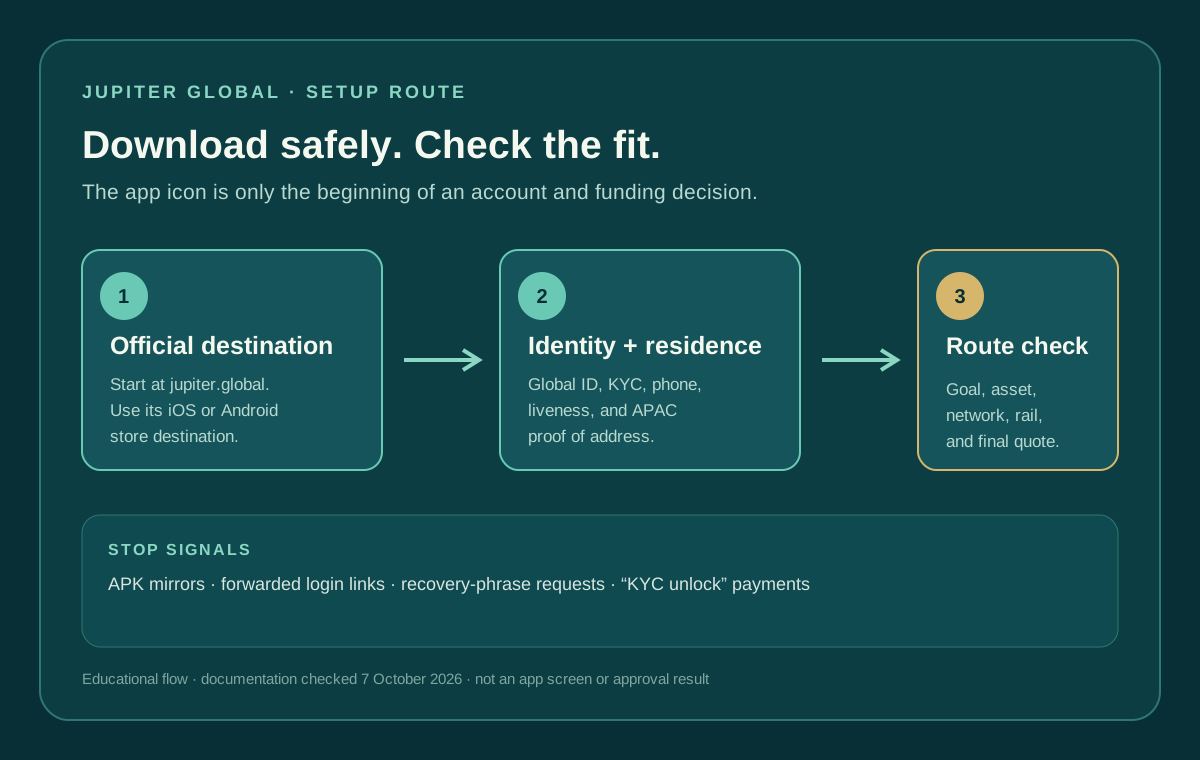
Jupiter’s official marketing page tells visitors to scan its QR code or use its download button for iOS or Android. Use that known destination rather than an APK mirror, a shortened URL from a message, or a “support” account that sends an installation file. This site doesn’t host the app or create accounts.
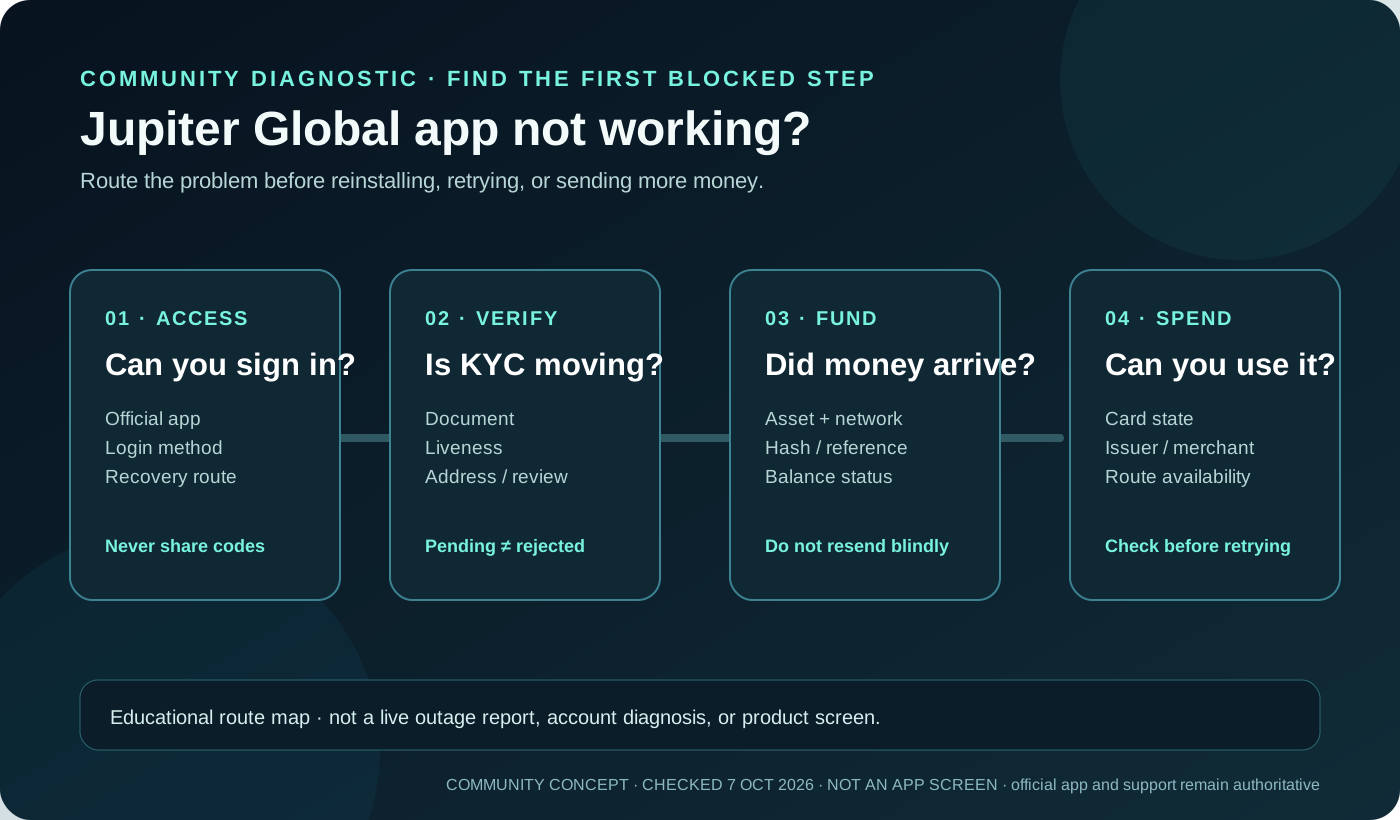
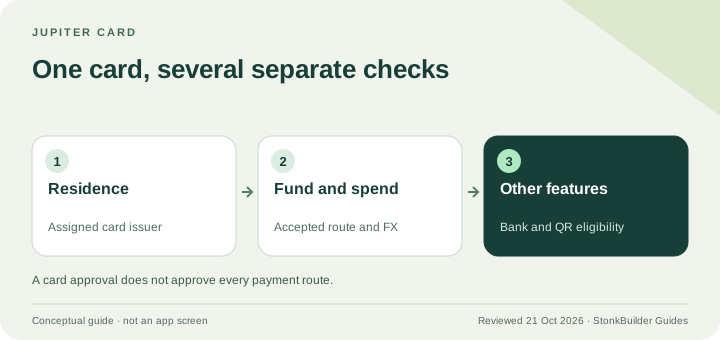
The official download is only the first checkpoint. Jupiter’s documentation says Spend uses Global ID (previously Jupiter ID), identity verification, and account-specific feature access. Installing the app does not prove that your country, card issuer, QR route, virtual account, or payout corridor will be available.
If you arrived through a campaign or referral message, read the referral-code checklist before creating an account. It explains where a current code belongs in the signup flow.
Keep the wallet and Spend identity separate
The same Jupiter Mobile app can contain both a self-custody wallet and the Spend experience. Jupiter says Global ID (previously Jupiter ID) is used for Spend identity verification and is not linked to DeFi wallets; it does not give the service access to a wallet’s recovery phrase or private keys. Never type a recovery phrase into a KYC screen, download prompt, or “activation” form. Mobile security model · Global ID boundary
Check the device before opening the store
The current Jupiter Mobile documentation lists iOS 18.0 or later and Android 9 or later for the supported mobile platforms. It also lists Solana Seeker and Saga, but the official iOS or Android store route remains the safest starting point for a normal phone. If a download page asks you to bypass the store, install a modified APK, or disable device security, stop and return to the official destination. Current platform requirements
What to do after installing the app
1. Set up the right identity
The documented flow starts inside the Jupiter app: open the Spend tab (the card icon at the bottom right), then sign in with your Global ID using an email, Google, or Apple account. Global ID was previously called Jupiter ID, and only one can be active at a time. Keep the email and phone under your control, and do not hand a login code to a person who claims to be completing setup for you. Read the official onboarding steps
Spend verification has five documented steps: an identity document, phone verification, a liveness check, personal information, and a short questionnaire. The documentation says APAC users also need proof of address, with utility, telecom, bank-statement, and tax-invoice examples. Manual review can take longer than the usual few minutes, typically 3–5 working days. That is a stated estimate, not a promise of approval. Check the current verification rules
Use your real residence and your own documents. Jupiter’s card documentation ties issuer and feature decisions to country of residence, and a country listed on a general page does not guarantee that every Spend feature is active for every account. Review the card and country boundary
2. Choose one first route
After verification, decide what you actually want to do before moving funds. Different goals have different checks:
| Goal | First question to answer |
|---|---|
| Card purchase | Which issuer, limits, merchant restrictions, and currency conversion apply to this account? |
| Merchant QR | Does the card and current market support the QR network at this merchant? |
| Bank transfer | Does the destination, currency, rail, beneficiary, and receiving bank fit the current quote? |
| Crypto deposit | Does the receiving screen accept this exact asset and network? |
This separation prevents a common mistake: treating an app download or successful KYC as proof that every route is open. Use the sign-up requirements checklist for the identity gate and the beginner guide for a complete first-payment sequence.
Before opening the store, use the site’s residence and feature checker if country or issuer availability is the deciding question. If you already know the country but are unsure whether the next job is a card purchase, bank credit, crypto deposit, or comparison, use the Route Finder to pin down that goal before you fund anything.
Before you fund anything
If the money is coming from another wallet or exchange, open the current Spend → Deposit screen and read it again immediately before sending. Jupiter’s documentation currently lists USDC on Solana, Ethereum, Sui, Arbitrum, and Base, and USDT on Solana for the direct Spend deposit address. Sending another token or an unsupported network to that address can be unrecoverable. Run the deposit preflight
If the money is arriving by bank transfer, use the bank instructions shown in the app. A virtual account is a bank rail, not a blockchain address. If the goal is a bank payout later, inspect the exit before depositing; the current remittance rules apply additional asset and corridor restrictions. Compare the bank and crypto routes
Keep the first test modest enough that a delay is manageable. Save the transaction hash, transfer reference, amount, network, and timestamp privately. Never paste a recovery phrase, private key, one-time code, or unredacted identity document into a community form or send it to an unsolicited helper. Review the scam and support boundaries
How to spot a fake download path
- Start from `jupiter.global` or the official app-store destination reached from it. Check the full domain before entering credentials.
- Prefer the iOS or Android store listing opened by the official site. Do not install a modified APK, “patched” client, or desktop package sent in a chat.
- Treat a request for a recovery phrase, private key, remote-control session, or payment to “fast-track” KYC as a stop signal.
- Do not let a guide, influencer, or referral page substitute for the current app’s verification and deposit screens.
- If the app and the documentation disagree, pause and use official support. A community article cannot override the live product or an account-specific restriction.
What a finished setup looks like
You’re set up when you have an official installation, truthful Global ID information, a completed verification decision, and one route whose current in-app instructions match the money you plan to move.
When you’re ready, sign up for Jupiter Global and follow the onboarding steps in the app; eligible Jupiter Card purchases then earn you 2% cashback, up to $100 a month. Check the residence, verification state and first route shown in your account before moving funds.
For the next step, read what Jupiter Global is, then use the supported-countries guide if residence is your deciding question.
Jupiter Global app download FAQ
Where should I download the Jupiter Global app?
Start from the official Jupiter Global website and follow its iOS or Android store destination. Do not use an APK mirror, modified client, shortened link or installation file sent by a stranger.
What phone versions does the current documentation support?
The current Jupiter Mobile documentation lists iOS 18.0 or later and Android 9 or later. Confirm the live store listing and device requirements before installing, because platform support can change.
Does installing the app mean I can use Spend immediately?
No. Spend still requires Global ID setup, identity verification and account-specific feature access. A successful installation does not prove that your residence, issuer, card, QR route or payout corridor is available.
What should I prepare before KYC?
Use your real residence and your own documents. The documented flow includes identity, phone, liveness, personal-information and questionnaire steps; APAC applicants may also need proof of address. Follow the exact request in the official app.
How can I tell whether a download or setup helper is fake?
Stop if someone asks you to install a modified APK, share a recovery phrase, private key, password or one-time code, grant remote access, or pay to speed up verification. Go to the official site or app-store listing yourself and use official support when the screens disagree.
Sources
Checked against these sources on 21 October 2026.