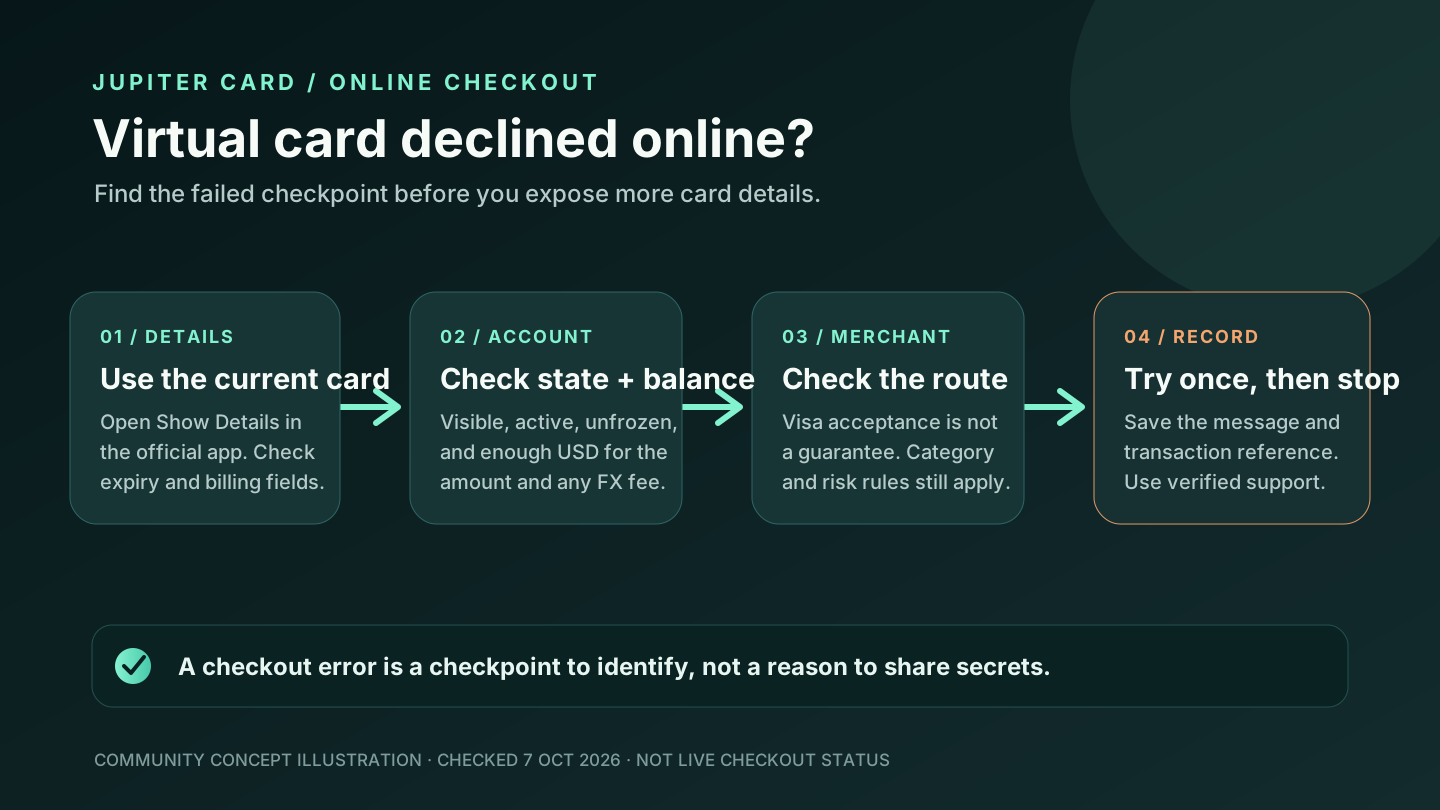
An online checkout can decline a Jupiter virtual card even when the card is visible in the app. Start with the current card details and account state, then separate a merchant-category or issuer decision from a checkout mistake. Do not keep entering card details into a page you cannot verify.
For related card, wallet and transaction-state paths, keep the Jupiter Global guides directory open; an online decline can be a card-state problem, a merchant restriction, or a separate pending-authorization incident.
Use the current card details once
Open the official Jupiter app and go to Spend → Card → Show Details. Compare the current card number, expiry and security information with the checkout fields. If the app shows a replacement, expired, frozen or cancelled card, remove the obsolete details from the merchant account only after you have recorded the exact error.
Do not copy card details from an old screenshot, browser autofill entry, chat message, or a page sent by an unsolicited “support” account. The Card documentation describes Show Details and Manage inside the official Cards screen; that is the right place to retrieve the current values. Card management
Check the card state and available USD balance
The Jupiter Card spends from a USD Spend balance. Confirm that the virtual card is visible, active and unfrozen, and that the available balance covers the amount the merchant is attempting to authorise. A non-USD purchase can also carry the issuer’s FX fee: the current table lists 1% for Rain and 1.8% for DCS. Current card fees
Check the issuer ceiling separately. Rain-issued cards have no documented spending limit; DCS-issued cards have a $50,000 daily limit and a $990,000 annual limit. A payment can still decline below those ceilings because available balance, merchant category, FX, card state and risk controls are separate checks.
Do not confuse the app’s display currency with a different settlement balance. The card documentation says deposited stablecoins are not automatically converted to USD on arrival; the app displays the Spend balance in USD. A currency selector or a merchant’s local-currency display does not remove the need for enough available USD. Card balance mechanics
Check whether the checkout route is the problem
Jupiter’s FAQ says common decline reasons include insufficient balance, a frozen card, a DCS spending limit, restricted merchant categories, and dynamic risk controls. The fee documentation lists money transfers, remittance, stored-value loads, securities, gambling, certain government services, and other controlled categories among possible restrictions. A Visa logo or a familiar brand does not override those rules. Decline reasons · Restricted categories
Ask what the merchant is actually selling and how the checkout is classified. A normal software purchase and a payment that moves money, loads stored value, trades financial assets, or falls into another controlled category can receive different decisions. If the category is unclear, use another payment route instead of repeatedly submitting the same card.
Keep the first retry controlled
If the card is visible, active, unfrozen, funded, and the checkout details are correct, correct the obvious field error and retry once. Save the merchant name, amount, currency, time, and the exact message. If the merchant says the payment failed but Jupiter shows a pending authorisation, stop: an uncaptured authorisation can remain pending for up to 30 days depending on the merchant. A second checkout can create a second hold. Pending-authorisation FAQ
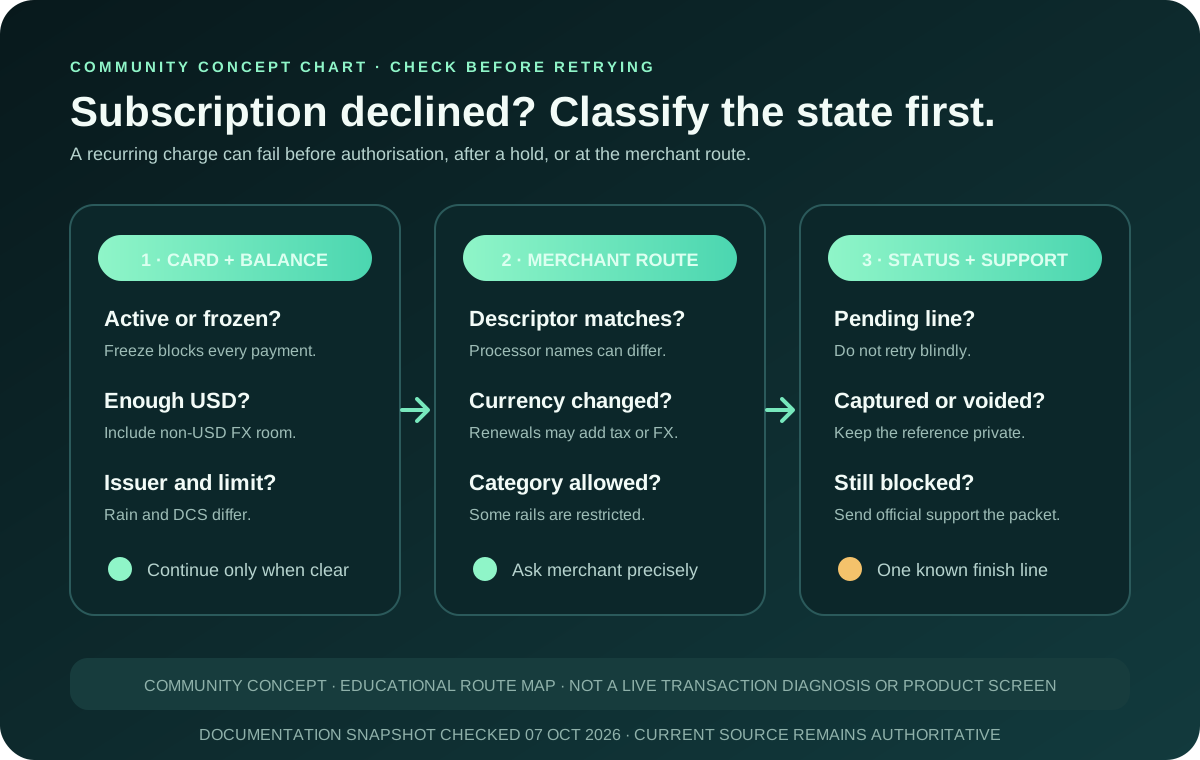
If the online payment is a recurring subscription, use the subscription preflight before trying again. If the card is not visible or activation is still pending, use the activation guide. If the merchant category itself looks restricted, read the restricted-merchant guide.
Protect the online checkout from recovery scams
Use the merchant’s verified domain and the official Jupiter app. Never give a supposed helper your PIN, one-time code, password, recovery phrase, private key, full card security code, or identity document. Jupiter’s security guidance explains that regulated partners operate the Spend products, so only official support can look into a blocked checkout. Partner and security boundaries
If the error repeats after one controlled retry, use a backup method and contact official support with the original transaction details. Include the merchant, amount, currency, timestamp, card state, and exact error. Ask whether the transaction is pending, declined, reversed, or absent from the card history. Official support route
Use the Route Finder to confirm that the intended job is an online Card payment, then use Safety Practice before retrying.
The merchant-decline guide covers broader balance, issuer and category checks, and the mobile-wallet guide covers Apple Pay and Google Pay enrollment.
You’re done when you have one of these: corrected details, a documented merchant restriction, a pending reference you don’t duplicate, or an official case that can trace the original checkout. Don’t have a Jupiter card yet? Sign up for Jupiter Global and confirm the live issuer, balance and online merchant route in the official app. Eligible Jupiter Card purchases earn 2% cashback, up to $100 a month.
Jupiter Global Virtual Card Online Payment Declined FAQ
What should I check first when an online payment is declined?
Open the official app and compare the current card details, then confirm that the card is visible, active, unfrozen and funded from the available USD Spend balance. Record the exact merchant error before trying again.
Can a merchant category cause a virtual-card decline?
Yes. The checked FAQ and fee documentation list restricted merchant categories, spending limits and dynamic risk controls among possible decline reasons. A familiar brand or Visa logo does not prove that the checkout category is supported.
Should I retry a declined online payment immediately?
Correct an obvious field error and retry once only after checking the card state, balance and merchant route. If Jupiter shows a pending authorisation, stop and do not create a second hold while the first transaction is unresolved.
Why can a non-USD online purchase need more USD balance?
The card spends from a USD Spend balance, and the current fee table lists issuer FX fees for non-USD purchases. A merchant’s local-currency display does not remove the need for enough available USD to cover the authorisation and applicable fee.
What evidence should I give official support?
Keep the merchant name, amount, currency, timestamp, card state and exact checkout message. Ask whether the transaction is pending, declined, reversed or absent from card history, and never send a PIN, one-time code, password, recovery phrase, private key or full card security code.
Sources
Checked against these sources on 21 October 2026.