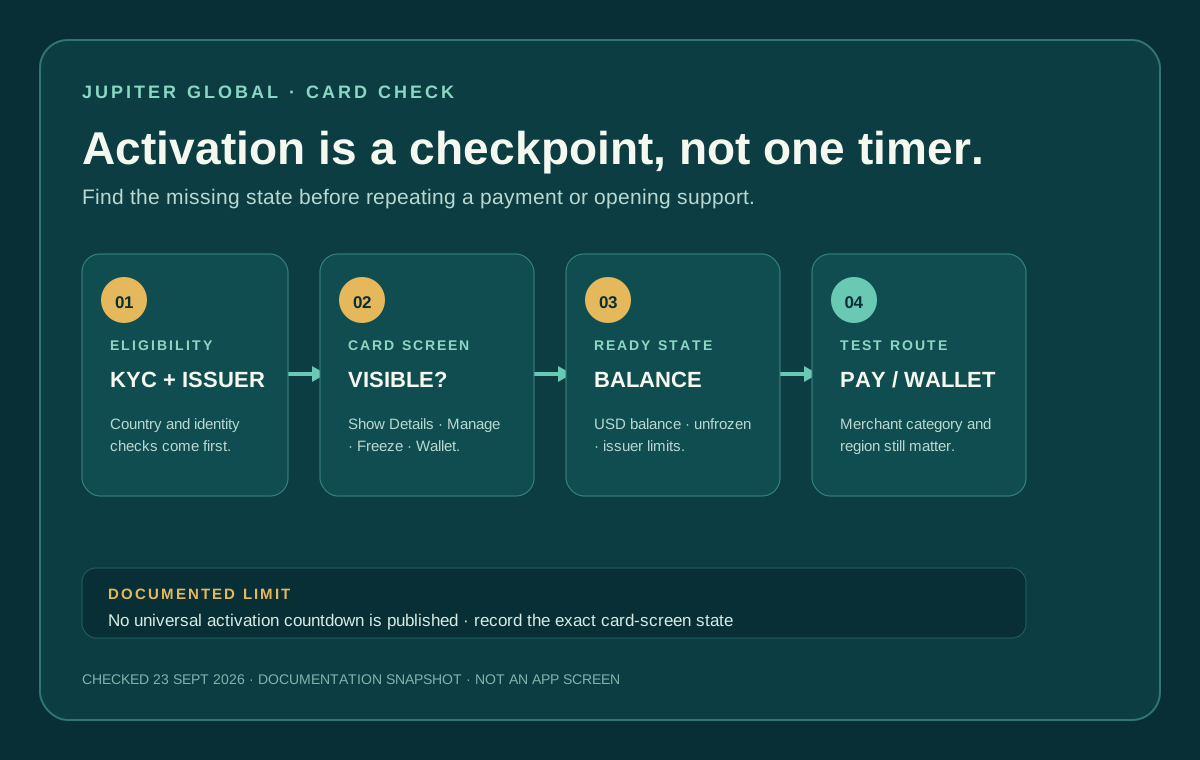
“My Jupiter Global card is still pending activation” can describe several different checkpoints. The card may not have been issued to the account yet, the physical-card rollout may not include you, the balance may be empty, the card may be frozen, or the merchant may have rejected a perfectly active card. Jupiter’s public documentation does not publish one universal activation countdown, so identify the missing checkpoint before waiting or trying the payment again. The Jupiter Global guides directory keeps activation, wallet, KYC, decline, and delivery paths together while you identify the blocked step.
Start with the Cards screen
Open the official Jupiter app and go to Spend → Card. The current Card documentation says the Cards screen shows each card with Freeze, Show Details, and Manage actions, an Add to Apple Wallet or Google Pay button, and the card’s transactions. The Add card control starts a new card order. Card management controls
If the card is visible and Show Details or Manage works, the account has reached a different checkpoint from “no card issued.” Record what the screen actually says. If the card is absent, the issue may be eligibility, KYC completion, issuer assignment, or phased availability rather than a stuck activation switch.
Do not send a deposit, card number, PIN, or identity document to someone who claims to activate the card for you. Activation and account access belong inside the official app.
Separate virtual-card access from physical-card rollout
The Jupiter Card documentation describes the virtual card as available through the app. Physical cards are rolling out in phases, and the option appears in an account when that account is included. The documentation says full physical rollout is planned by the end of 2026; that is a rollout statement, not a promise that a particular account will receive an order today. Physical-card availability
If your goal is an online payment or a mobile wallet, a missing physical-card shipment is not automatically a missing virtual-card activation. If your goal is a physical card, check whether the order option is present, whether shipping details were accepted, and whether the order is still in delivery. The physical-card delivery guide and card-cost guide cover those separate checkpoints.
Check the balance before calling it activation
The card draws from the Spend balance in USD. The app displays the Spend balance in USD; deposited USDC and USDT are not automatically converted to USD on arrival. With Rain, the stablecoins remain on-chain as card collateral. A card that is visible and not frozen can still decline because the available balance is too low, because a non-USD payment includes the issuer’s FX fee, or because the issuer’s spending limit has been reached. Card balance and fees · Current limits
Check the available balance and the payment currency before making another attempt. A successful deposit proves that the balance was funded; it does not prove that every merchant category, country, or wallet route will accept the card.
Check the issuer and the merchant route
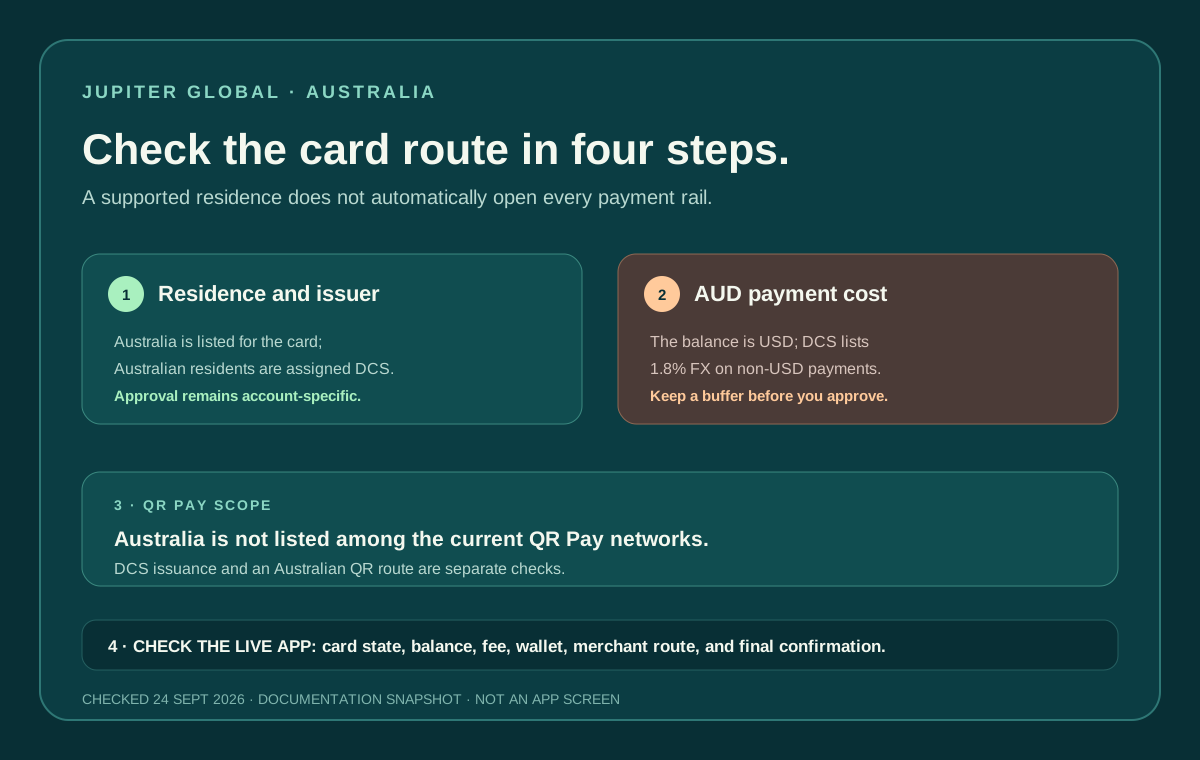
Jupiter assigns each user one issuer, Rain or DCS, based on the country of residence. The issuer affects fees and limits. The FAQ lists insufficient balance, a frozen card, a DCS spending limit, and restricted merchant categories among the common reasons for a declined card payment. Some merchants can also be restricted dynamically by risk monitoring. Card-decline checks
This is why “activation pending” is often the wrong diagnosis. A card can be active but declined at a restricted merchant; a card can be visible but frozen; and a card can be usable for an ordinary Visa payment while QR Pay is unavailable. The card-not-working guide separates those payment states before you retry. QR Pay currently depends on card and country conditions, including DCS issuance and activation-date rules in some markets. QR Pay eligibility
A mobile wallet has its own checkpoint
Apple Pay and Google Pay are not proof of card activation. The documented setup uses the card details under Show Details, then wallet verification by the platform. Jupiter says it charges no fee for adding or using the card in those wallets, but Apple or Google availability can still be restricted by region. A supported Jupiter Card does not guarantee that the mobile-wallet service supports the same country. Mobile-wallet setup
If the physical or virtual card works in the official Card screen but wallet setup fails, follow the wallet-specific path. The mobile-wallet guide covers the platform checks; do not delete and recreate the Jupiter ID to retry a wallet enrollment.
Build a support-ready record
Before contacting support, keep a private note with:
1. The country of residence and whether KYC shows complete. 2. Whether the virtual or physical card is visible in Spend → Card. 3. The exact status or error text, without exposing full card details publicly. 4. Whether the card is frozen and whether the available USD balance is sufficient. 5. The merchant, amount, currency, date, and decline or wallet error. 6. The device and wallet platform if the issue occurs in Apple Pay or Google Pay.
Use in-app support with that record. Jupiter’s FAQ says card issues should include the original transaction details. A support case can investigate a traceable account and transaction; it cannot make an unsupported country, merchant category, or wallet service eligible. Official support path
For a controlled first purchase, use the first-card payment checklist. For a merchant response, use the card-declined guide. For an identity checkpoint, use the KYC-pending guide, then run the residence preflight before treating availability as confirmed.
You’re done when the card is visible, unfrozen, funded and accepted on a documented route. If you haven’t opened an account yet, sign up for Jupiter Global and check the issuer and activation state in the app before funding or spending. Once the card is active, eligible Jupiter Card purchases earn 2% cashback, up to $100 a month.
Jupiter Global card activation pending FAQ
Why does my Jupiter Global card still say pending activation?
“Pending activation” can refer to different checkpoints: card issuance, physical-card rollout, balance, freeze state, issuer eligibility, merchant category or mobile-wallet setup. Open Spend → Card and record the exact status instead of assuming there is one universal activation timer.
How do I check whether my card is active?
Use the official app’s Spend → Card screen. If the card is visible and Show Details or Manage works, check the card state, issuer and available USD balance before testing a documented payment route.
Is a physical-card delay the same as a missing virtual card?
No. The documentation describes the virtual card in the app while physical cards are rolling out in phases. A missing shipment does not by itself prove that the virtual card is unavailable.
Can an active card still decline?
Yes. A visible and unfrozen card can still fail because of insufficient balance, issuer limits, restricted merchants, currency or a separate wallet checkpoint. Compare the merchant route and amount before one controlled retry.
What should I send official support about a stuck activation?
Send the exact status or error, country of residence, KYC state, whether the virtual or physical card is visible, freeze state, available balance, merchant and transaction details, and the wallet platform if relevant. Redact passwords, one-time codes, PINs, recovery phrases and full card details.
Sources
Checked against these sources on 21 October 2026.