If you are searching for Jupiter Global Google Pay, the useful question is whether your active Jupiter Card can be enrolled in Google Wallet in your region. The card, issuer, Android wallet, and local service availability all have to line up. A failed add-card message does not automatically mean the card or your account is broken.
Check the card before opening Google Wallet
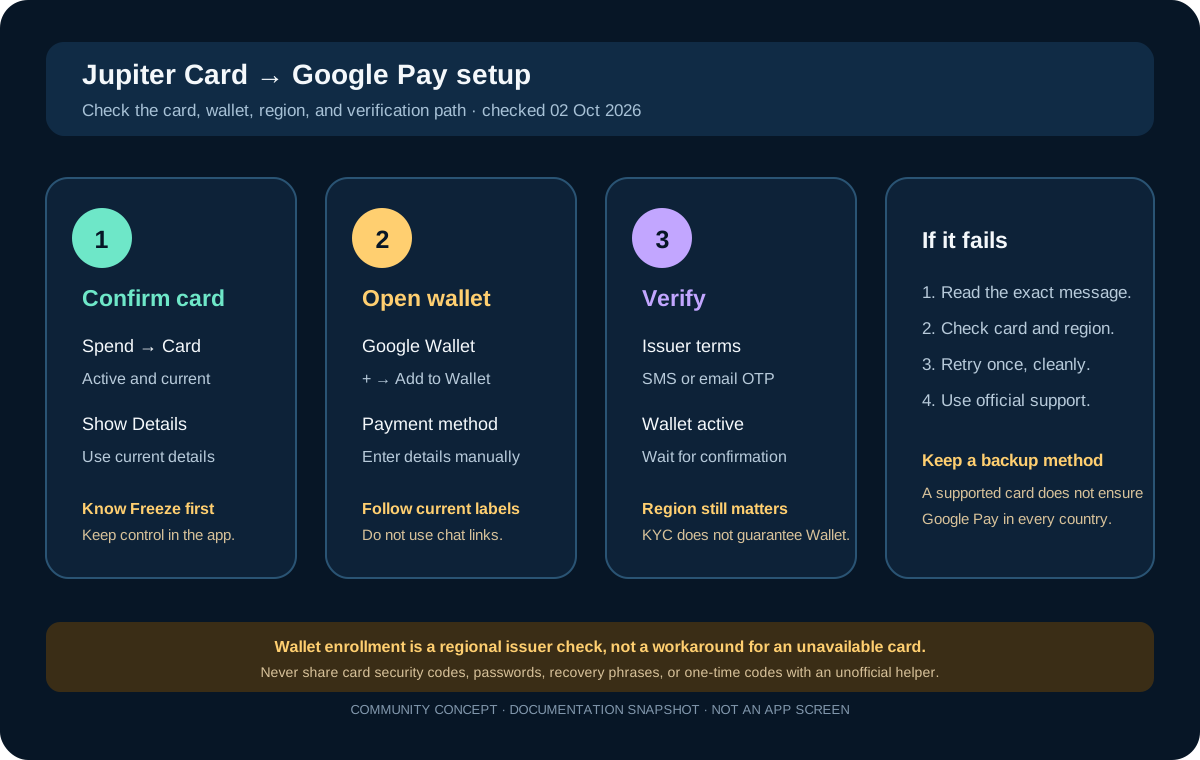
Open the official Jupiter app and go to Spend → Card. Confirm that the card is active and that the details shown are the current card details. A frozen, cancelled, expired, or not-yet-issued card is not a useful candidate for wallet enrollment. If a replacement card was issued, an old number saved in Google Wallet can fail even when the account itself is fine. Jupiter Card documentation
Know where the Freeze control is before you add the card. If the phone or wallet later behaves unexpectedly, you can freeze the card from the official app while you investigate. Do not paste the card number, security code, password, or one-time code into a support chat or a social-media message. Spend security guidance
Follow the current Google Pay setup sequence once
Jupiter’s current Spend FAQ describes this sequence:
- 1. Open Google Wallet on the Android device.
- 2. Tap Add to Wallet.
- 3. Select Payment method.
- 4. Enter the current Jupiter Card details manually when prompted.
- 5. Accept the issuer’s terms.
- 6. Choose the available verification method and complete the SMS or email verification.
The app may use “Google Pay” in some labels and “Google Wallet” in others. Follow the labels shown by the current wallet application rather than an old screenshot. Verification should happen in the wallet or the issuer’s documented flow. Jupiter Spend FAQ
Do one clean attempt and record the exact message if it fails. Repeatedly removing and re-adding the same card can erase the clue you need to identify the failed checkpoint.
Separate Google Pay availability from Jupiter Card availability
Jupiter says that Apple Pay and Google Pay support depends on the region. Your country can support the Jupiter Card while the wallet service or issuer verification is unavailable there. KYC approval therefore does not guarantee that the card can be added to Google Wallet in every market. Jupiter Spend FAQ If residence is the uncertainty, use the residence preflight to read the documented country boundary before funding.
Check these boundaries before changing account or phone settings:
- The country or region configured for the phone and Google account.
- The country of residence used for Jupiter identity verification.
- Whether Google Wallet contactless payments are supported in that market.
- Whether the card issuer assigned to your residence can verify the card.
- Whether the Android device and wallet application are current and signed in to the intended account.
Do not switch a region or create a second Jupiter ID just to bypass a wallet message. A local platform restriction is a product-availability issue, not proof that an alternate location will make the card usable.
Use the Route Finder to separate a wallet setup problem from the route you actually need: ordinary card spending, QR Pay, a bank payout, or crypto funding. Wallet enrollment cannot approve any of those other features.
Read the error as a decision tree
| Google Pay message or state | Most useful interpretation | Next check |
|---|---|---|
| Card or country is not supported | Wallet, issuer, or regional availability | Confirm the current country and official card availability |
| Could not verify or verification unavailable | Issuer contact or account verification path | Confirm the phone/email on the Jupiter account; then use official support |
| Invalid card details | Stale or incorrect card record | Reopen Spend → Card and enter the current details once |
| Card appears but tap-to-pay fails | Wallet device settings, merchant, balance, or card state | Test a small ordinary purchase and compare the app transaction state |
| Card disappeared after a phone reset | Device-specific wallet enrollment was lost | Add the active card again through the wallet flow |
Google Wallet setup does not change the USD balance, card issuer, foreign-exchange fee, merchant restrictions, or country eligibility. It is another way to present an already-issued card. A wallet icon is not a new funding rail and does not guarantee that every merchant or currency will work. Jupiter Card documentation
Test safely after the card appears
When Google Wallet shows the card as active, make one low-stakes test while keeping a backup payment method. Avoid using the first test for a hotel deposit, rental-car hold, large subscription, or a trip where a decline would leave you without another option. Check the currency and amount before confirming, then compare the wallet result with the transaction shown in Jupiter.
If the merchant reports a failure but the Jupiter app shows a pending authorization, pause before trying again. A pending entry is not the same as a completed payment. Keep the receipt and the exact time for support if the state does not settle as expected. Official Jupiter support
When to contact official support
Use in-app support when the card is active, Google Wallet is supported in your region, the verification details are current, and one clean enrollment attempt still fails. Include the exact error, Android version, device model, wallet name, issuer if shown, and approximate time. Include only the minimum transaction context needed. Never include a recovery phrase, private key, full security code, or one-time password. Official Jupiter support
If you do not have a card yet, read the app-download guide and use the residence preflight. Don't have the card yet? Sign up for Jupiter Global and add it to Google Wallet once it's active. Eligible Jupiter Card purchases earn 2% cashback, up to $100 a month. The referral link does not prove card or wallet eligibility.
Retrying won’t tell you much. Identify whether Google Wallet, the issuer, the region, the card state, or the verification step is blocking enrollment, then take the next action that matches that state.
Jupiter Global Google Pay FAQ
Can I add a Jupiter Global card to Google Wallet?
It depends on the card state, assigned issuer, Android device, Google Wallet service and region. Jupiter documents Google Pay availability separately from card availability, so confirm the current wallet option in your account and market before funding or relying on it.
What is the correct Google Wallet setup sequence?
Open Google Wallet, choose Add to Wallet, select Payment method, enter the current card details from Spend → Card, accept the issuer terms and complete the available SMS or email verification. Follow the labels shown by the current wallet app.
Why does Google Wallet say my card or country is unsupported?
The issuer or Google Wallet service may not support that card in the configured phone or account region. Confirm the region and active card, then use official support if the same message remains. Do not create a second Jupiter account or change regions to bypass a product boundary.
What if the card appears in Google Wallet but tap-to-pay fails?
Wallet enrollment and payment approval are separate. Check the USD balance, issuer limits, currency, merchant category, card state and device settings, then make one modest test purchase with a backup payment method.
What should I send support for a Google Pay setup error?
Send the exact error, Android version, device model, wallet name, issuer if shown and approximate time, plus only the transaction context requested. Redact card numbers, security codes, passwords, one-time codes, private keys and recovery phrases.
Sources
Checked against these sources on 2 October 2026.