

Bank details are instructions, not a generic destination. A Jupiter Global virtual account can show a currency, beneficiary name, account identifier, routing information and a reference that all need to travel together. Before you send, you should be able to explain the exact currency and rail you’re using, find every required field on the current Spend screen, and stop if your bank form doesn’t match.
Use the support-packet guide only after a transfer needs tracing. It helps you prepare evidence; it does not read your account or validate a bank form. For a first-time deposit, the better protection is a careful copy-and-match preflight.
Open the current receiving screen first
Jupiter’s Global Fiat Remittance documentation says that, after Jupiter ID verification, users receive virtual accounts in USD and EUR. EUR availability may depend on the country of residence. Incoming fiat transfers to those accounts credit the Spend balance used by the card and QR Pay. Read the virtual-account documentation
Open the current receiving instructions inside the legitimate Jupiter app before opening your bank’s transfer form. Confirm that the virtual account is actually visible for your verified profile and that the displayed currency is the one you intend to send. A screenshot, saved PDF or bank template from an earlier transfer can be outdated.
The public documentation also lists temporary bank-deposit unavailability in California, New York, Connecticut and Puerto Rico. Treat that as a product limitation to check against your own account, not as a reason to copy another user’s details or route around an eligibility screen. Current limitations
Map the fields one at a time
The receiving screen and the sending bank may use different labels for the same concept. Make a private two-column note (“shown by Jupiter” and “entered at my bank”) and match each required field before you submit:
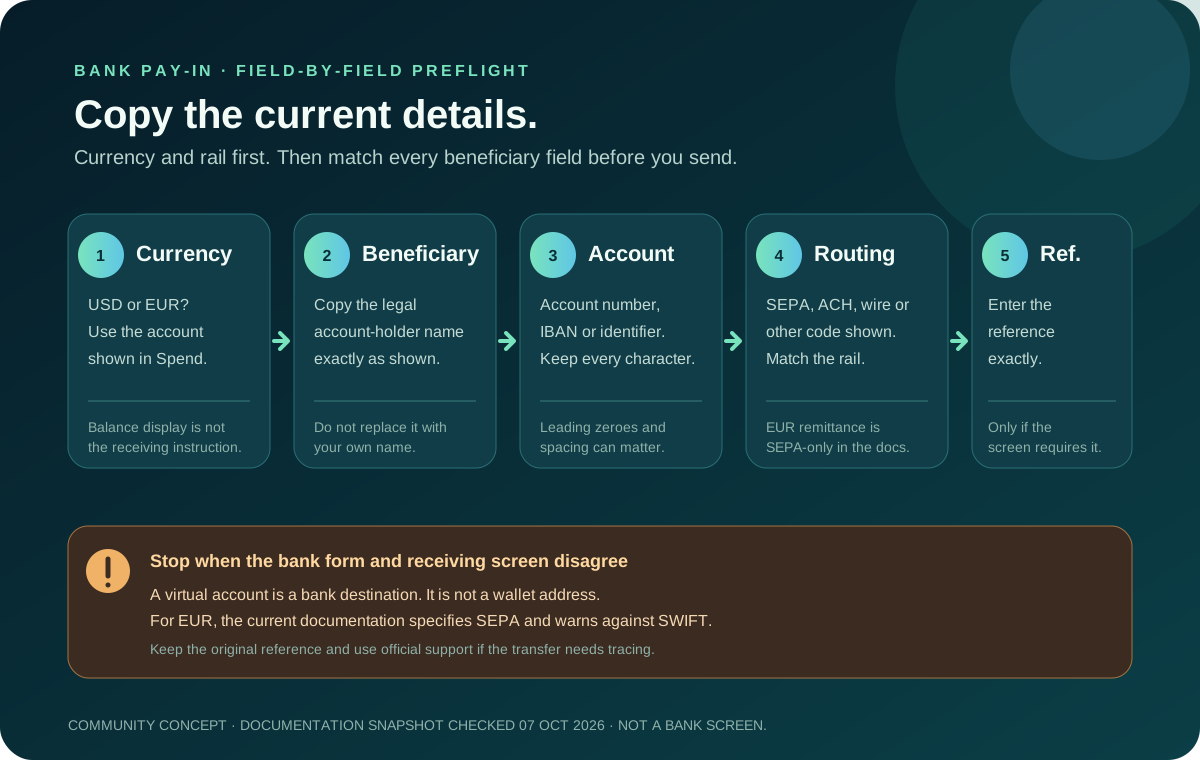
1. Currency. Choose the USD or EUR account shown in Spend. Do not rely on the display currency of your balance; the account receiving the bank transfer is the deciding instruction. 2. Beneficiary or account-holder name. Copy the legal beneficiary wording exactly, including punctuation or a partner name if the screen provides one. Do not replace it with your own name because you are the person funding the account. 3. Account identifier. This may be an account number, IBAN or another identifier appropriate to the currency and bank. Preserve every digit and letter, and do not remove leading zeroes. 4. Bank and routing details. Use the bank name and the routing field the receiving screen specifies. Depending on the route, a bank form may ask for an IBAN, BIC/SWIFT code, local routing number or another field. The label alone does not prove that a rail is compatible. 5. Payment reference. If the receiving instructions include a reference, enter it exactly where the sending bank asks for a memo, message or end-to-end reference. Do not invent a reference when none is provided, and do not replace a required reference with a note to yourself. 6. Amount and fee treatment. Check whether the amount you instruct your bank to send is the amount expected to credit Spend after the applicable pay-in fee. Current fee tables can change, and your sending bank may add its own charge. Check the fee schedule
The FAQ says the app prompts the exact fields needed for each country when sending bank transfers. That is a useful rule for receiving details too: let the current in-app instructions determine the fields instead of assuming every USD or EUR account uses the same form. Required bank-transfer information
Match currency and rail, especially for EUR
Currency and rail are separate decisions. The current remittance documentation specifies that EUR remittances are supported via SEPA only and warns that EUR SWIFT transfers are not supported and may fail or not be credited. If a bank form presents “international wire” as the familiar option, that does not make it a valid EUR route.
For USD, use the rail and routing details presented for the USD account in your own Spend screen. Do not choose ACH, Fedwire or SWIFT because a guide, search result or another account used it. The detailed fee documentation lists different fees by deposit rail, but a published fee row is not proof that the rail is enabled for your residence or account. Fees and limits
If the currency label, beneficiary information and bank rail cannot all be made consistent, pause before authorizing. Ask official support for clarification rather than sending a “small test” over a route that might not credit.
A bank detail is not a crypto address
Virtual accounts are funded by incoming fiat transfers from external bank accounts. Jupiter explicitly says USDC cannot be deposited directly into virtual accounts. A bank account number, IBAN or routing code should never be pasted into a wallet send form, and a crypto address should never be typed into a bank beneficiary field.
If your funds start as USDC or USDT, open the separate crypto deposit flow and match the supported asset and network there. The virtual-account versus crypto-deposit guide explains the boundary; the deposit-network guide covers the network check. Do not bridge the two flows by guessing.
Review the sender and purpose before submitting
Use the sender account and payment purpose that are truthful for the transfer. Bank compliance checks can delay a payment, and a large or unusual transfer may lead to a request for supporting information. Do not split a payment, change the sender name or disguise the purpose to try to bypass a review.
Read the final bank review screen against your private note. Check the currency, decimal position, beneficiary, account identifier, routing code and reference character by character. If a bank autofills an old beneficiary or changes a code after you paste it, stop and compare again with the current receiving screen.
Keep the receipt and transfer reference privately after submission. A bank confirmation that says “sent” is evidence of the sender’s status, not proof that the Spend balance has credited. The incoming virtual-account pending guide covers the next checkpoints if the balance does not update.
If details changed or the transfer is already sent
Do not edit an old transfer by sending a second one to a newly displayed account. Preserve the original reference, amount, currency, send time, sender-bank status and the receiving details used. Contact official in-app support or the Jupiter Support Hub if the bank confirms completion but the transfer cannot be reconciled.
For a support case, include the traceable reference and the minimum beneficiary context needed to identify the route. Redact recovery phrases, private keys, passwords, one-time codes, full card security codes and unrelated account history. The support-packet guide can help you put the message together, but check it against the official support instructions before submitting.
Use the Route Finder to keep an incoming virtual-account credit separate from an outbound payout, then use Quote Compare only for your own route figures.
The safest next step is the current receiving screen, the correct bank rail and one carefully reviewed transfer. If that route fits your use case, sign up for Jupiter Global and copy the live account instructions from the app before sending. Deposits into the account don’t earn cashback, but eligible Jupiter Card purchases earn 2% cashback, up to $100 a month.
Jupiter Global Virtual Account Beneficiary Details FAQ
What beneficiary details do I need for a Jupiter Global virtual-account deposit?
Use the current Spend receiving screen as the authority for the account currency, beneficiary name, account identifier, bank and routing fields, payment reference, and any amount or fee instruction. Required fields can vary by currency and route.
Can I use a saved bank beneficiary from an earlier Jupiter deposit?
Review it against the current receiving screen before sending. A saved beneficiary, screenshot or bank template may be outdated, and an old route or reference can prevent a transfer from being matched correctly.
Can I send EUR to a Jupiter virtual account by SWIFT?
The checked remittance documentation says EUR transfers are supported through SEPA only and that EUR SWIFT transfers are not supported. Do not choose an international-wire option simply because the bank form offers it.
Is a Jupiter virtual-account number a crypto deposit address?
No. A virtual account is an incoming fiat bank-transfer route. Keep bank details in the bank-transfer flow and use the separate supported asset-and-network flow for crypto deposits.
What should I do if the beneficiary details changed after I sent money?
Do not send a second transfer to the new details. Keep the original reference, amount, currency, time, sender-bank status and receiving instructions used, then contact official in-app support or the Jupiter Support Hub with the minimum traceable evidence.
Sources
Checked against these sources on 7 October 2026.