Community concept illustration—not an actual app screen.
QR Pay is a merchant-payment feature, not a general bank-transfer limit. The useful question is whether your card, country, merchant QR format, balance, and payment size all fit the current Spend rules at the same time.
The two limits to remember
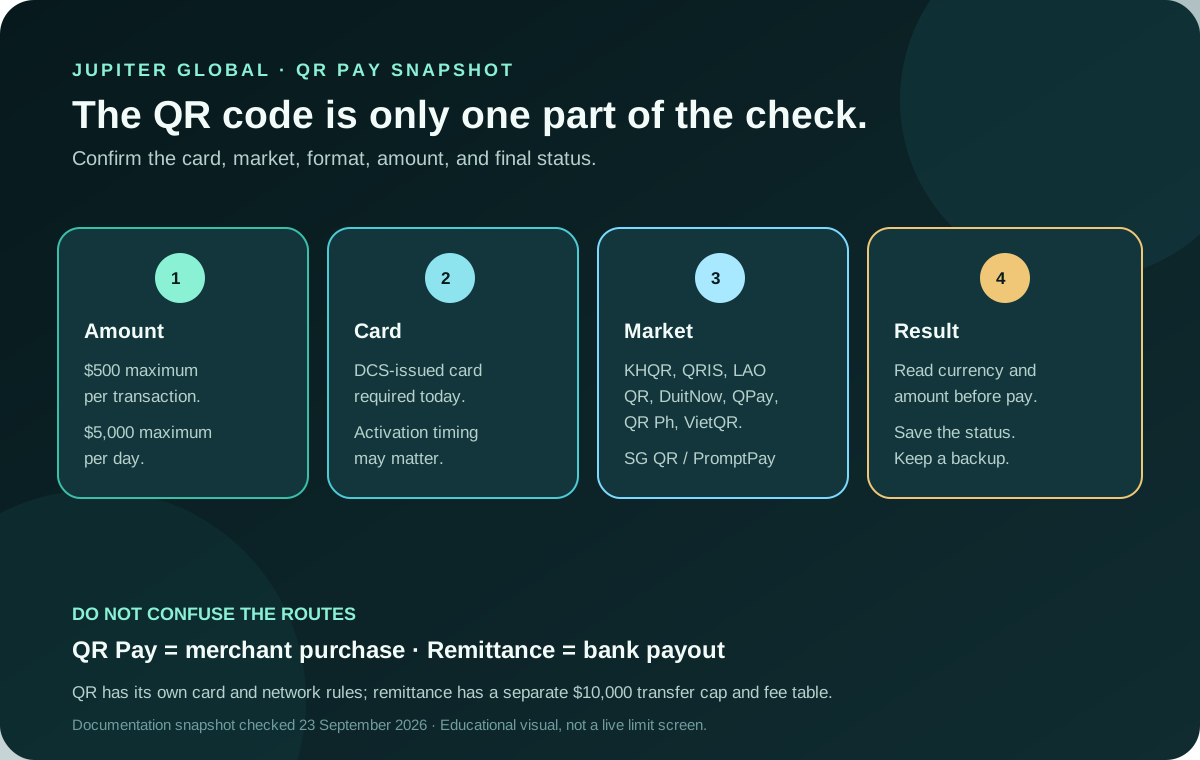
Jupiter’s current Fees & Limits page lists a $500 per-transaction limit and a $5,000 daily limit for QR Pay. Those figures are limits on the documented QR Pay feature, not a promise that every merchant, card, or account will be able to use the full amount. Current QR Pay limits
Treat the daily number as a ceiling, not a spending target. A merchant can still decline a payment for its own reasons, a card can have separate issuer conditions, and the app may show a more specific availability message for your account.
Check the card before scanning
QR Pay is currently available on DCS-issued cards only. The FAQ also warns that card support can depend on activation timing in some countries. A card that works for an ordinary Visa purchase may therefore still lack QR Pay access. Card eligibility for QR Pay
Open the legitimate Jupiter app, confirm which card is active, and look for the QR Pay option before you stand at the merchant. If the feature is absent, do not assume that reinstalling the app, changing the QR code, or asking a stranger for an “unlock” will change the issuer rule.
Confirm the QR network and market
The documented merchant networks currently include Cambodia (KHQR), Indonesia (QRIS), Laos (LAO QR), Malaysia (DuitNow), Mongolia (QPay), the Philippines (QR Ph), and Vietnam (VietQR). Singapore (SG QR) and Thailand (PromptPay) are temporarily unavailable in the current documentation. P2P QR availability is narrower than merchant payments and depends on the jurisdiction. QR Pay markets
Look for the supported merchant QR mark at the point of sale. A familiar-looking square is not enough: the format and market must be supported by the card and feature you are using. Availability can change, so the app’s current state should win over an old travel post.
What you pay and what the merchant receives
The published QR Pay fee is none for the payer or recipient, including the documented currency conversion. Payments settle in the merchant’s local currency and the USD Spend balance is converted at the market rate. A zero Jupiter fee does not mean the price is locked before authorization; read the amount and currency shown by the app and merchant terminal. QR Pay fees and settlement
QR Pay also does not earn cashback under the current FAQ. Card purchases and QR merchant payments are separate categories, so do not count a QR transaction toward a card-reward expectation. Spend FAQ
Why a QR payment can fail below the limit
The FAQ names insufficient balance, an unsupported merchant QR format, and connectivity problems as common reasons for failure. A payment below $500 can still fail for one of those reasons. Check the available Spend balance, network connection, and merchant code before trying again. QR troubleshooting
If the merchant says the first attempt failed while the app shows a pending authorization, pause. A second scan can create a separate attempt rather than repairing the first one. Save the receipt or reference privately and use the official support path if the status does not resolve.
QR Pay is not remittance
QR Pay pays a participating merchant. Global Fiat Remittance sends or receives fiat through virtual accounts, SWIFT, and local bank payouts. Remittance has a separate $10,000 per-transfer cap, a different fee table, different beneficiary fields, and different corridor restrictions. Do not use the QR ceiling to plan a bank payout, and do not treat a bank-transfer route as proof that a merchant QR will work. Remittance rules
For the Philippines and Vietnam, the country QR guide explains the QR Ph and VietQR distinction. For a first card payment, use the card setup checklist and keep a backup method while you test.
A safe preflight before a larger payment
1. Confirm the active card is DCS-issued and QR Pay is visible in the app. 2. Check the merchant’s QR format and country against the current list. 3. Keep the payment at or below $500 and track the day’s cumulative QR spend. 4. Read the local currency and amount before authorizing. 5. Keep a backup payment method and record the final status privately.
If you need to compare a bank route instead, use the site’s Quote Compare tool with current inputs. It cannot check a QR merchant or retrieve a live card limit; it only keeps a separate comparison from being mistaken for product availability.
The clean finish line is not “the QR code scanned.” It is a supported card, supported market, supported merchant format, known amount, and a confirmed result.
Sources & what was checked
Public documentation reviewed 23 September 2026. This is a documentation-based guide, not a first-hand account, identity-verification or payment test. Open the current sources before acting.