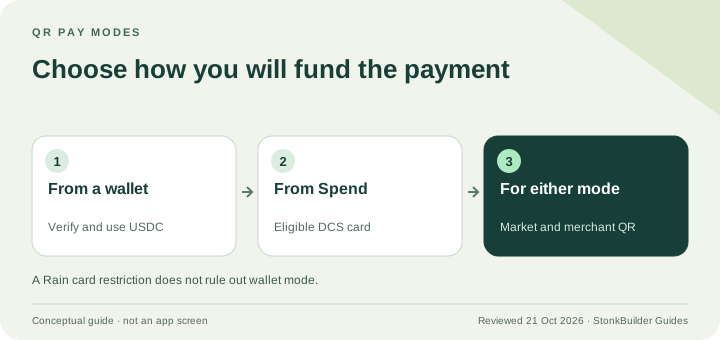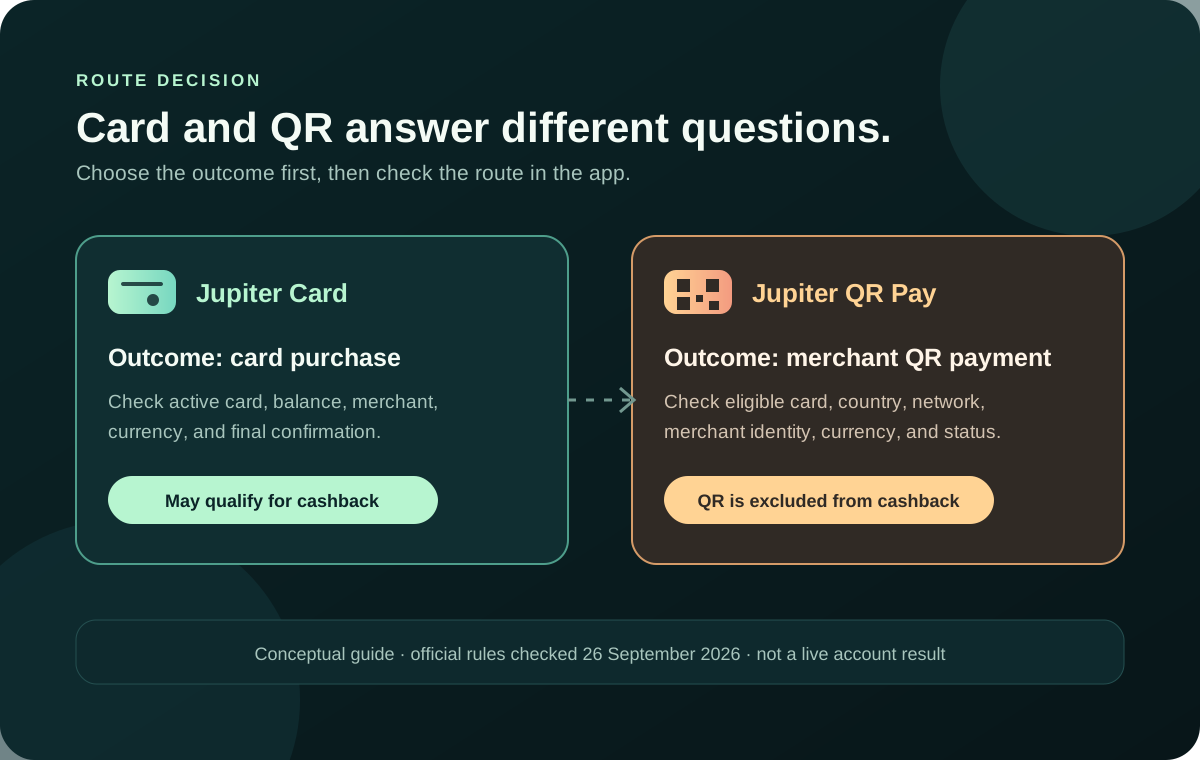
QR Pay has two funding routes. Wallet-funded QR uses USDC on Solana in Jupiter Mobile after Global ID sign-in and the required identity check; no Jupiter Card is needed. Spend-balance QR requires an eligible DCS-issued card. Wallet QR limits come from the merchant code, while Spend QR has the documented $500 transaction and $5,000 daily limits. Wallet payments show the exchange rate and network cost before confirmation. Current QR routes If you are choosing between a Jupiter Card payment and Jupiter QR Pay because you want cashback, the answer is straightforward: the official rewards documentation excludes QR Payments from card cashback. Cashback eligibility belongs to qualifying card purchases, while QR Pay is a separate merchant-payment route with its own card, country, and network checks. Spend overview · Reward exclusions
If you are still choosing the product rather than comparing a live payment route, use the residence and feature checker and Route Finder first. They help you sort Card, QR, bank and funding paths; the official app shows your actual eligibility and reward status.
QR Pay is still useful. Just pick the route for the result you need, and don’t assume two payments from the same USD balance earn the same rewards.
Card payment or QR Pay?
| Your immediate goal | Route to evaluate first | Main check before paying |
|---|---|---|
| Use a card network or preserve cashback eligibility | Jupiter Card | The card is active, the merchant is allowed, and the balance covers the final amount |
| Scan a supported merchant code | Jupiter QR Pay | Your card and the merchant’s QR network are both eligible |
| Send money to a bank account | Global Fiat Remittance | Currency, beneficiary fields, rail, and recipient timing |
| Move a token from Jupiter Mobile into Spend | Send → Send to Spend | The app shows the intended destination and conversion before confirmation |
The app’s current screen is the authority for your issuer, country, merchant network, and available balance. Payment-route guide
Why QR Pay is not a shortcut to card rewards
QR Pay can draw from the same Spend balance as the Card, but the payment method and eligibility rules are different. The current documentation describes QR Pay as scan-to-pay for supported Asia-Pacific merchant networks and separately says that QR transactions are not eligible for cashback. QR Pay documentation
This distinction prevents three common mistakes:
1. Same balance, same reward assumption. A USD balance does not turn every debit from that balance into a card purchase. 2. No payer fee, therefore cashback. A fee description and a reward rule answer different questions. A QR route can have a documented fee treatment without qualifying for card cashback. 3. A readable QR code, therefore supported. A code can be technically scannable while its network, merchant type, or card eligibility is outside the current route.
When the Card is the better first check
Start with the Card when the purchase is online, the merchant accepts ordinary Visa details, or the reason for using Jupiter is card-payment eligibility. Before authorizing:
- Confirm the card is visible and active in the app.
- Check the available USD balance after allowing for any issuer or currency conversion charge.
- Read the merchant name, currency, and amount on the final confirmation screen.
- Keep the receipt and transaction reference private but accessible if the payment later becomes pending or disputed.
- Treat a pending entry as a status to investigate, not proof that the purchase failed.
The card documentation describes issuer and regional differences, so a country page or a successful deposit cannot prove that every card purchase will be approved. Card management and issuer checks
When QR Pay is the better route
QR Pay can fit a supported in-person merchant when the code belongs to a documented network and your card is eligible. The current QR table is date-bound and can change by issuer, country of issuance, activation date, or network. Check the live table before a trip rather than relying on a screenshot or a guide written for another market. The broader Jupiter QR Pay guide explains the country and merchant-network checks in more detail. Current QR networks
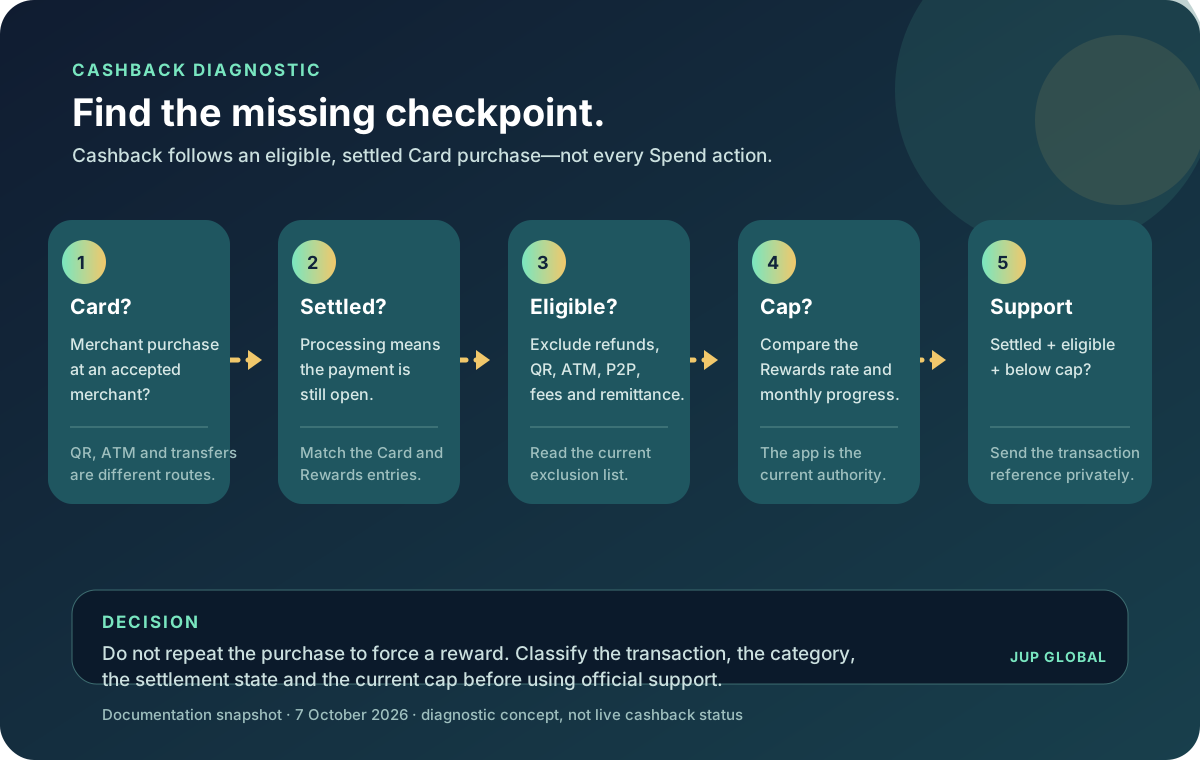
At the counter, confirm the merchant name and local currency in the app. A personal receiving code is not automatically a supported merchant payment. If the first attempt shows pending, do not scan again until you know whether the original settled, failed, or remains open. A duplicate payment is harder to unwind than a short pause.
Funding still matters
The reward decision comes after the funding decision. If the money is already in a Jupiter Mobile wallet, the official Spend overview recommends Send → Send to Spend, which swaps a held token into USDC without asking you to copy a deposit address. If you fund from another venue, use only the asset and network shown in the current Spend deposit screen. The documentation warns that an unsupported asset sent to that address may not credit and may not be recoverable. Funding overview · Deposit safety guide
Do not fund an account solely because a QR payment looks convenient. First confirm the merchant route, the card or QR eligibility, the currency, and the result you expect to see after authorizing.
A two-minute route check
1. Name the outcome: cashback-eligible card purchase, supported QR merchant payment, bank payout, or account funding. 2. Open the matching product screen in the official app. 3. Confirm the card state, issuer or network, merchant identity, currency, and final amount. 4. Choose Card or QR only after the route matches the outcome you named. 5. Save the transaction reference and wait for a clear result before trying again.
The Route Finder can help you map a route before you move money. If card spending is what you’re after, sign up for Jupiter Global: eligible Jupiter Card purchases earn 2% cashback, up to $100 a month, while QR payments don’t.
Jupiter QR Pay Cashback FAQ
Does Jupiter QR Pay earn card cashback?
The checked rewards documentation excludes QR Payments from card cashback. Cashback eligibility belongs to qualifying card purchases, while QR Pay uses a separate merchant-payment route with its own network and issuer conditions.
Is a QR payment better than a card payment?
Choose by what you need. Use the Card route when ordinary card acceptance or cashback eligibility matters; use QR Pay when the merchant network, card and country conditions are supported. The same USD balance does not make the routes equivalent.
Does a no-fee QR payment qualify for cashback?
No. Fee treatment and reward eligibility are separate rules. A documented payer-fee treatment does not turn a QR transaction into a qualifying card purchase.
Can every readable QR code earn cashback?
No. The code must belong to a supported merchant network and your card must meet current issuer, country and activation conditions. A technically scannable code is not proof of route eligibility.
What should I check before switching from QR Pay to Card?
Confirm the card is active, the merchant accepts the ordinary card route, the balance covers the final amount and currency, and the app’s final screen matches the purchase. Keep the first result and reference before attempting another payment.
Sources
Checked against these sources on 21 October 2026.