Seeing “failed” after sending money creates a strong temptation to try again. Pause first. A failed status, a delayed transfer, a returned payment, and a transfer that the recipient cannot see are different states with different next steps. The Jupiter Global guides directory keeps refund, delay, recipient-credit, corridor, and support routes together while you classify the state.
This guide sorts the next checks by the status shown in the official app. That status, your balance and the transfer reference are the evidence that matters.
What the current transfer guidance says
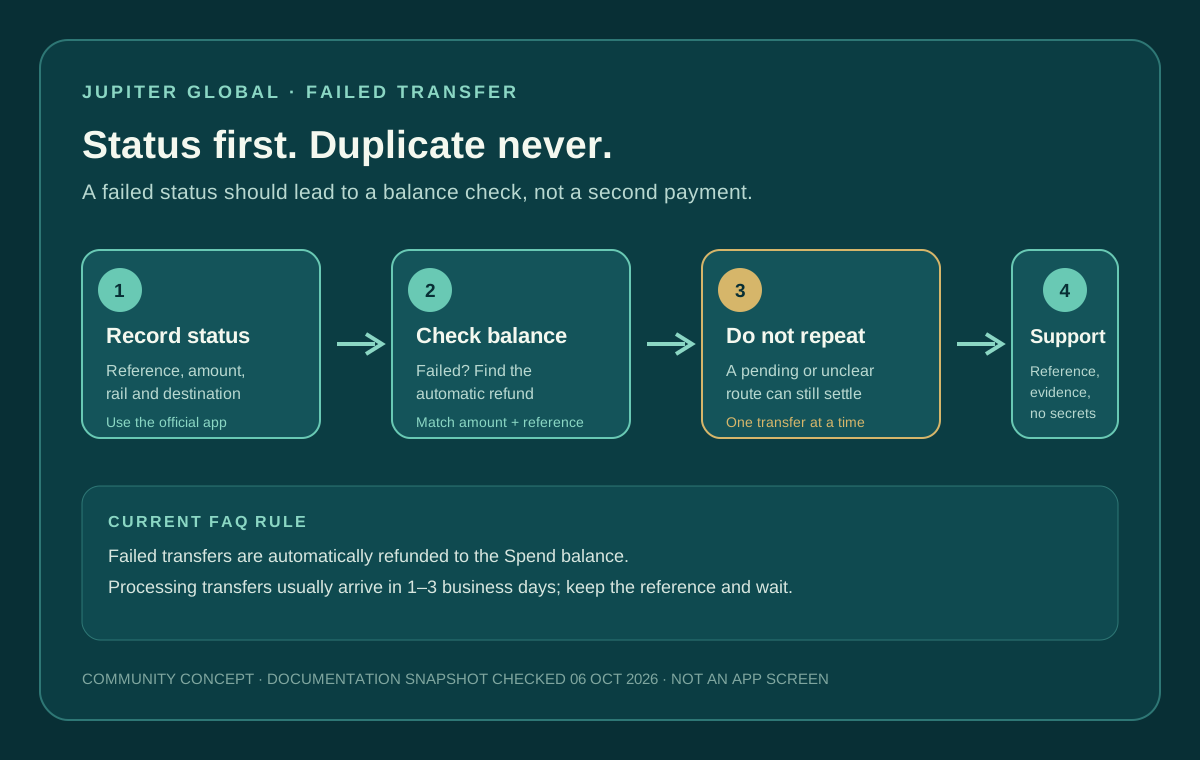
Jupiter’s current Spend FAQ says bank transfers can fail because of incorrect recipient details, bank compliance holds, or issues at the receiving end. It also says failed transfers are automatically refunded to the Spend balance. That means a failed transfer is not the same as a late recipient credit: first check whether the balance and refund history show the return. Read the bank-transfer FAQ
The FAQ also says most bank transfers arrive within 1–3 business days, depending on the destination country and receiving bank. A transfer still marked processing inside that window should not be treated as failed just because the recipient has not seen it yet. Check the published timing
Four statuses, four actions
Processing or pending
Keep the original transfer reference and wait inside the published typical window. Ask the recipient to check pending and incoming views at their bank, not only their available balance. Do not create a second transfer while the first one is processing. A duplicate can become a second obligation even if the original later arrives.
If the transfer is still processing after the expected window, prepare a support request with the reference, amount, currency, destination country, submission time and recipient-bank details. The FAQ specifically points readers to support with the transfer reference when a transfer is delayed. Open the official support hub
Failed
Open the Spend balance and transaction history. Look for an automatic refund that matches the failed transfer. Reconcile the amount, currency and reference before deciding what to do next.
If the refund is visible, keep the record and re-check the route before attempting a new transfer. Confirm the beneficiary name, bank, account number, currency and rail. A refund restores the balance; it does not repair an incorrect recipient or make an unsupported corridor valid.
If the status is failed but no refund is visible, do not send again to “unstick” the payment. Save a screenshot or private note showing the status and balance, then contact official support with the transfer reference. Avoid posting account details or identity documents in a public community.
Completed but the recipient is not credited
This is a recipient-bank investigation, not an automatic-refund assumption. Ask the recipient’s bank to search by amount, date, sender, currency and any incoming reference. Then give the same evidence to official support. Read the recipient-not-credited checklist for the separate receiving-bank path.
Do not use a “completed” label as proof that the beneficiary account received usable funds. Bank posting, intermediary review and local cut-offs can occur after the sender sees a completed state.
Returned or rejected
Keep the return notice and original reference. Check whether the Spend balance has been restored and whether the return identifies a wrong beneficiary field, unavailable corridor or compliance hold. Ask support whether the route needs corrected details or whether a new quote is required. A returned transfer should be reconciled before any replacement is submitted.
Build a support-ready packet
Before opening a ticket, record:
- the exact in-app status and transfer reference;
- submission date and time, amount and currency;
- destination country, rail and recipient bank;
- the beneficiary details entered, redacted when sharing;
- any receiving-bank message or return notice;
- whether the Spend balance shows a refund, reversal or neither.
Jupiter’s support hub asks for enough detail to reduce back-and-forth. Use the official in-app path or support.jup.ag and never give a helper your recovery phrase, private key, password, login code or full card security code.
Check the route before replacing the payment
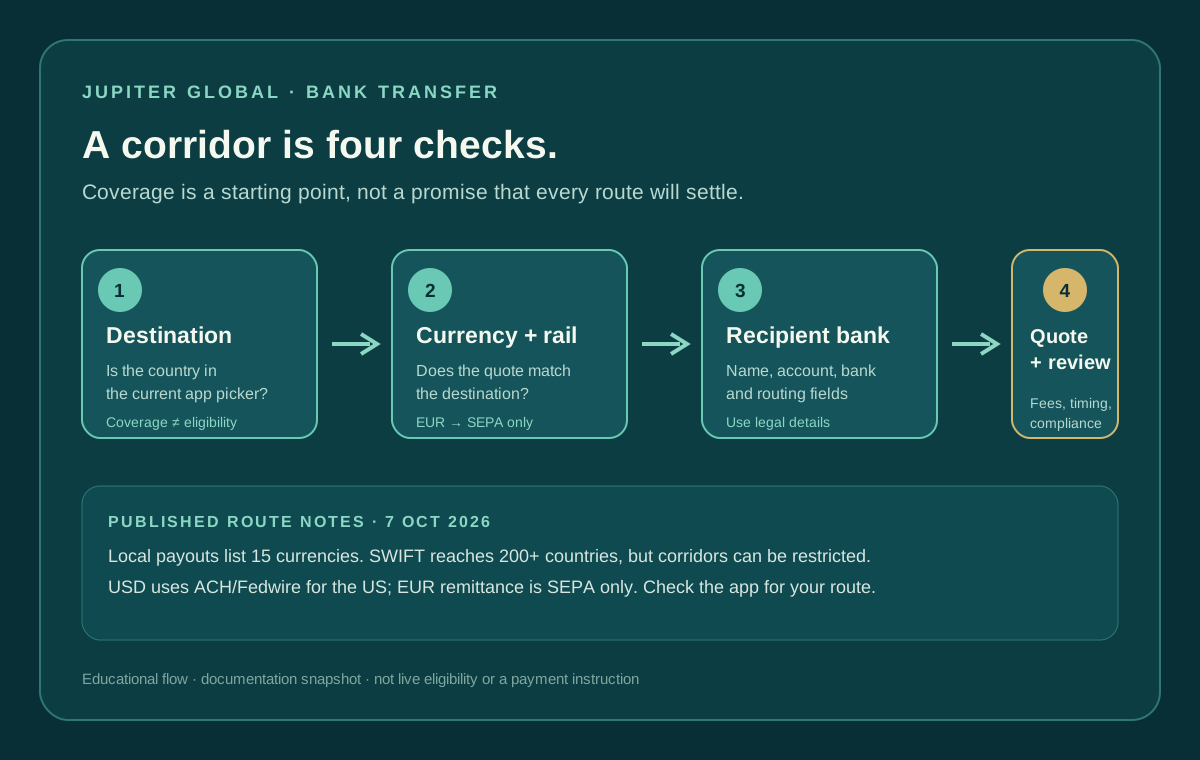
Once the status is reconciled, run the route again from the beginning. Confirm the destination in the app, match the currency and rail, and review the recipient’s legal name and routing fields. The remittance documentation says specific corridors can be restricted by the recipient bank and local regulations, and that EUR remittances are supported through SEPA only. Read the corridor limitations
Then compare the current quote, final recipient amount and delivery method. Use the quote comparison tool for equal-input scenarios and the Route Finder to recheck the destination and goal. Do not assume that a refund makes the same fee or corridor available a second time; fees, partners and route conditions can change.
Before trying again, run the bank-transfer corridor checklist so the next transfer doesn’t fail for the same reason. If you are starting from zero, read the app-download guide and run the residence preflight. New to Jupiter Global? Create your account and check the beneficiary details before your first transfer. You’ll earn 2% cashback on eligible Jupiter Card purchases, up to $100 a month; the transfer itself doesn’t earn it.
Jupiter Global failed bank transfer refund FAQ
Are failed Jupiter Global bank transfers automatically refunded?
The current Spend FAQ says failed bank transfers are automatically refunded to the Spend balance. Confirm that the balance and transaction history show the matching return; a “failed” label alone is not proof that the refund has posted.
How long should I wait before treating a transfer as failed?
The FAQ says most bank transfers arrive within 1–3 business days, depending on the destination country and receiving bank. A transfer still marked processing inside that typical window should not be replaced simply because the recipient cannot see it yet.
What if the transfer says failed but no refund appears?
Do not send the payment again. Save the exact status, amount, currency, time and transfer reference, then use official support to investigate the missing return. Keep account and beneficiary details private.
Is a completed transfer that the recipient cannot see automatically refunded?
No. A completed-but-uncredited transfer is a recipient-bank investigation, not an automatic-refund assumption. Ask the recipient bank to search using the amount, date, sender, currency and reference, then give the same evidence to official support.
What should I check before sending a replacement transfer?
Reconfirm the beneficiary name, account number, currency, rail, destination country and current quote in the official app. A refund restores the balance but does not correct an invalid beneficiary or make an unsupported corridor available.
Sources
Checked against these sources on 6 October 2026.