Community concept illustration—not an actual app screen.
USDC and USDT can look interchangeable when you are deciding how to fund Jupiter Spend. They are not interchangeable for every exit. The right choice depends on whether you plan to spend by card, use QR Pay, or withdraw to fiat later.
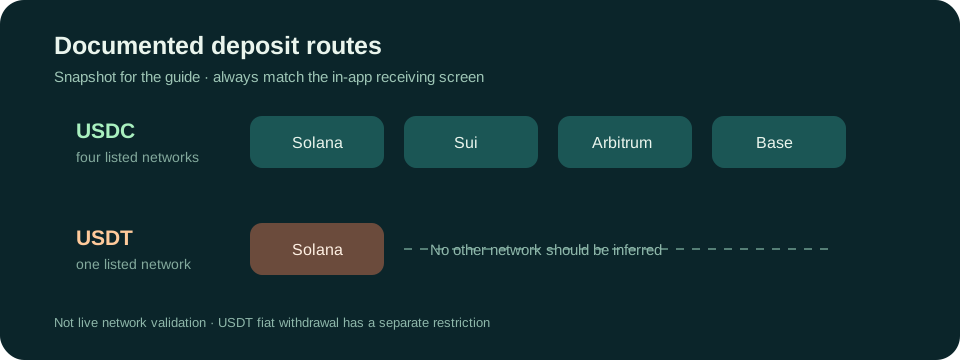
What the current documentation lists
Jupiter’s FAQ lists USDC deposits on Solana, Sui, Arbitrum, and Base. It lists USDT deposits on Solana. No other asset or network should be inferred from a similar-looking exchange dropdown. Sending on an unsupported network can permanently lose funds. Supported deposit networks
The receiving screen in the app is the final operational check. Match the asset, network, and address exactly. A correct token on the wrong chain is still the wrong deposit.
Pick the asset by the job
For ordinary card spending, both documented deposit assets can be credited to the Spend balance according to the product documentation. The balance is used as USD for the card, while non-USD card payments can carry an issuer-dependent foreign-exchange fee. Card mechanics
For a bank withdrawal or fiat exit, USDC is the relevant documented path. The fees and remittance pages state that USDT deposits cannot be withdrawn to fiat. If you start with USDT, do not assume an in-app conversion will be available, cheap, or enough to solve a regional withdrawal restriction. Withdrawal rule
For QR Pay, focus first on card and merchant-network eligibility. The token choice does not make an unsupported QR standard available. The documentation describes QR Pay as a separate route with its own card requirement, markets, limits, and temporary exclusions. QR Pay documentation
The cheapest-looking network may be the wrong one
Network fees are only one part of the decision. The current fee page notes that Arbitrum and Base deposits can carry a flat network cost of around $0.30, Sui around $0.10, and Solana can involve a one-time token-account creation cost in some cases. A flat fee can be significant for a small deposit, but avoiding it by selecting an unsupported network is not a saving. Deposit fee notes
When comparing routes, write down the whole path: exchange withdrawal asset, withdrawal network, Jupiter receiving asset, intended Spend feature, and eventual exit. If any box is blank, do not press send.
A safe deposit checklist
- Open Jupiter Spend and select Deposit.
- Choose the exact asset shown by the app.
- Choose only a network listed for that asset.
- Compare the first and last characters of the address after copying it.
- Check the amount after network fees and any exchange minimum.
- Send a modest valid test only when the receiving route is clear.
- Wait for confirmation and verify the balance before sending more.
Never paste a recovery phrase, private key, identity document, or card security code into a support chat or website. A legitimate deposit flow needs the receiving address, not control of your wallet.
If you already sent the wrong asset or network
Stop and preserve the transaction hash, asset, network, destination address, and time. Do not send a second “repair” payment to a stranger. Contact the exchange or receiving provider through its official support channel and understand that unsupported deposits may be unrecoverable.
If the transaction is still pending at the sending service, cancellation may be possible there, but a confirmed onchain transfer usually cannot be reversed by Jupiter or the exchange. Treat every network selection as a final decision.
The practical rule
Use USDC when a documented fiat withdrawal may matter. Use only the network the current receiving screen lists. Use USDT only when the intended Spend route does not require a fiat exit and the app explicitly presents the matching network. This is a dated documentation guide, not a live approval or address check.
Sources & what was checked
Public documentation reviewed 23 September 2026. This is a documentation-based guide, not a first-hand account, identity-verification or payment test. Open the current sources before acting.